
This week’s pick is the next step in something Google has been building for a few weeks now: meeting recaps in Google Chat, which post a summary of every Google Meet call, with the decisions and who owns each next step, right into the meeting’s chat when the call ends.
Meeting recaps in Google Chat: use it
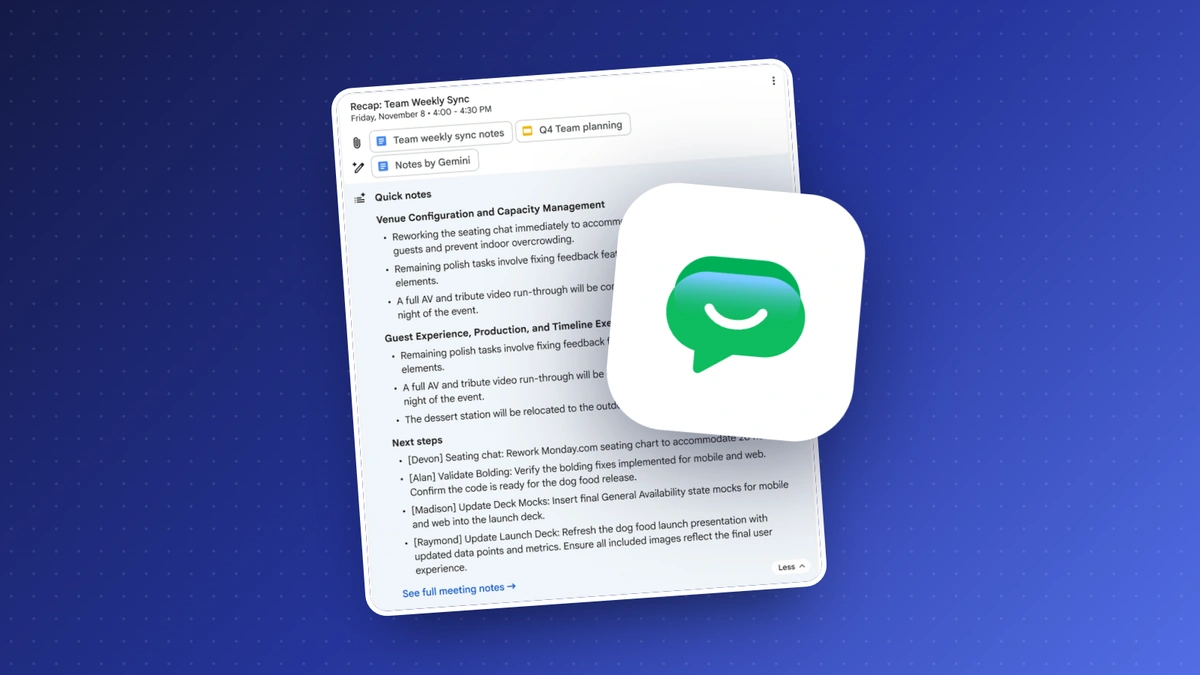
On October 19, Google announced meeting recaps in Google Chat. When a Meet call ends, a recap card shows up in the chat conversation tied to that meeting with four things: a short summary of what was discussed, links to the Gemini notes, the recording and the transcript, the key decisions, and the action items, each with a name on it.
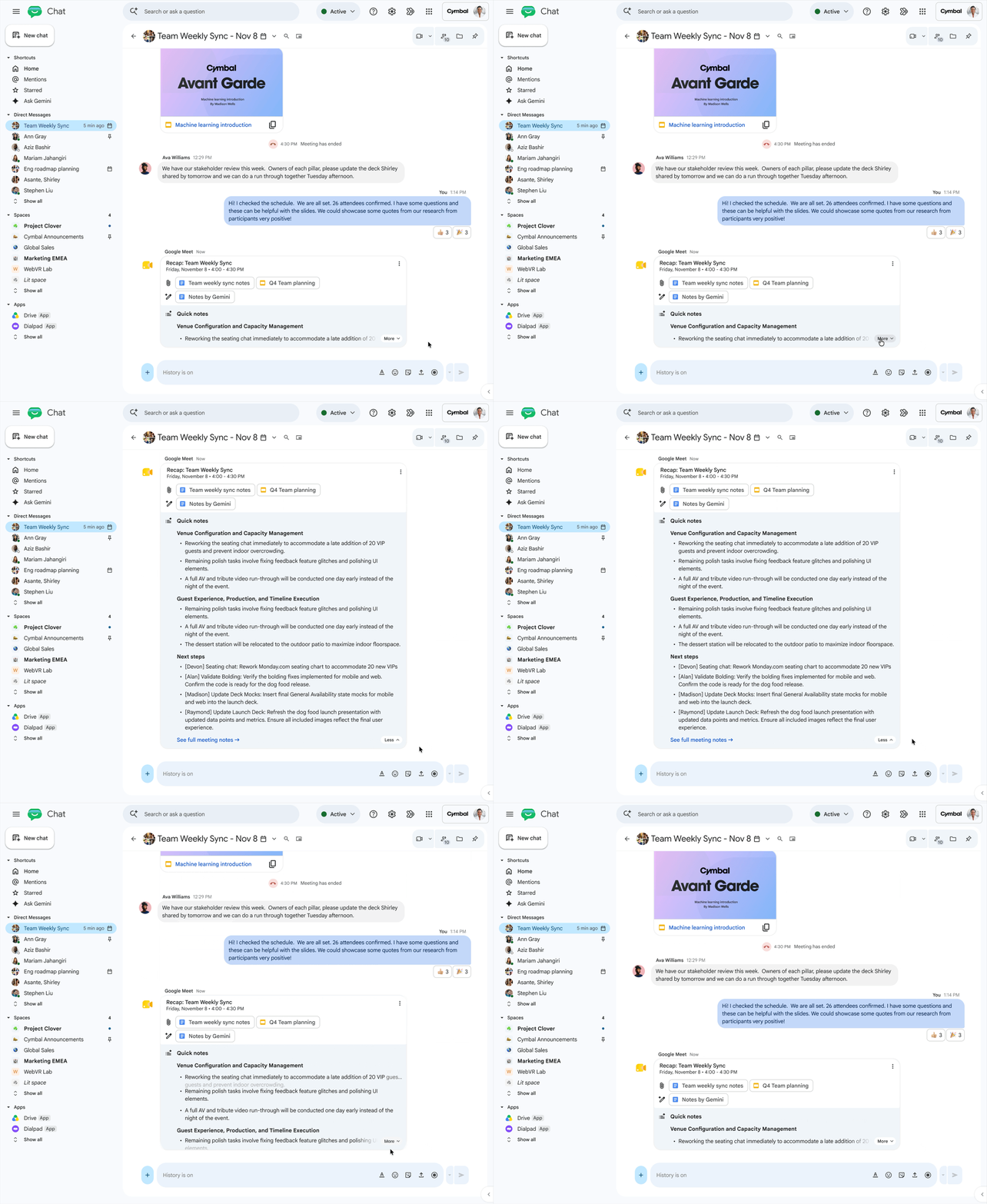
Last week I wrote about Gmail AI Inbox and Meet’s next steps screen, and this closes the loop. The next steps screen helps the person who ran the meeting, while the recap lands where the whole team already talks, so the people who were on the call see what they agreed to do and anyone who missed it or joined late can catch up without reading a transcript or hunting for the notes.
We have a rule at lilAgents that every meeting gets recorded, because once a conversation is plain text, you can act on it. I talked about this with Jesse Miller on Retooled, and his version for in-person meetings is a note-taking pendant hooked up to ChatGPT that pulls out everything he promised and puts the dates on his calendar. If your team meets on Google Meet, this gets you a lot of the way there with nothing to buy.
How to turn it on
There’s nothing to turn on. If your company has Gemini enabled in Workspace, recaps are on by default, and they show up for any meeting where “Take notes for me” is on and the meeting has a chat. Rapid Release domains started getting it October 16. Scheduled Release domains, which is the default and what most small businesses are on, start October 27, and it can take up to 15 days to show up.
It’s on Business Standard and Plus, Enterprise Standard and Plus, and Frontline Plus. Business Starter isn’t on the list.
The catch
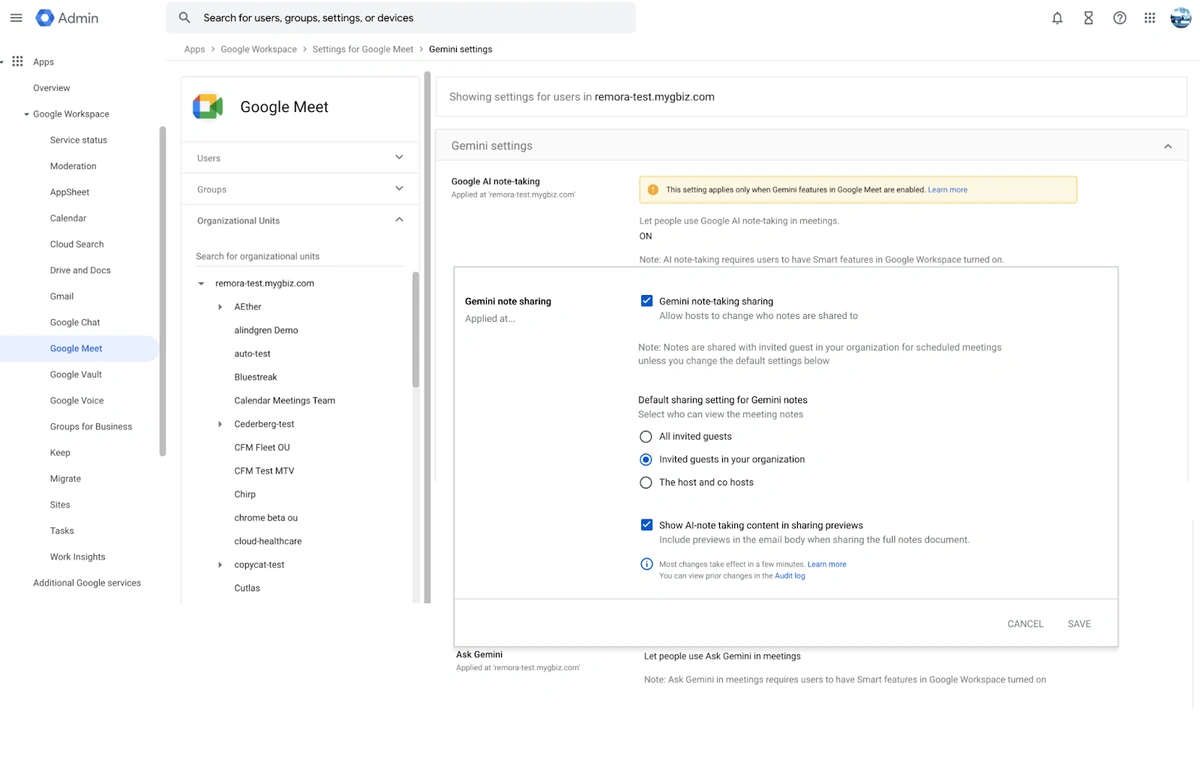
If the meeting’s host sets “Send notes to” to “Hosts and co-hosts only,” the recap doesn’t post to the group, which is crazy, because then nobody else sees it. Your admin sets the default for who gets the notes in the Admin console, under Google Meet’s Gemini settings, so check that it isn’t set to the host and co-hosts.
The cards also post silently (no bold conversation, no unread badge), so the team has to know to look for them. And it’s a summary: a next step with the wrong name on it is still wrong until somebody fixes it.
My call: use it. Ten-minute test: run your next internal Meet with “Take notes for me” on, then check whether the recap in Chat matches who actually agreed to do what.
Images: Google Workspace Updates, meeting recaps in Google Chat
The rest of this week
Docs Live: use it
On October 21, Google started rolling out Docs Live in the Google Docs app on Android and iOS. You talk through what you need, even if you’re rambling, and Gemini builds a structured document on the page, pulling context from your Gmail, Drive, Chat and the web.
That’s interesting, and Google’s video shows it off pretty well: someone planning a block party with emails flying all over the place asks Gemini for help and gets an organized plan out of it.
For an owner, that’s the scope, the punch list or the proposal outline drafted from the truck right after the site visit, while it’s fresh, instead of at the desk that night. It’s available now on Business Standard and Plus, Enterprise Standard and Plus, and Google AI Pro and Ultra, and it’s on by default for anyone with Gemini in Docs.
My call: use it. Next time you leave a meeting with a list of things to do, open the Docs app and talk it through.
Gemini apps to Google Sites: use it
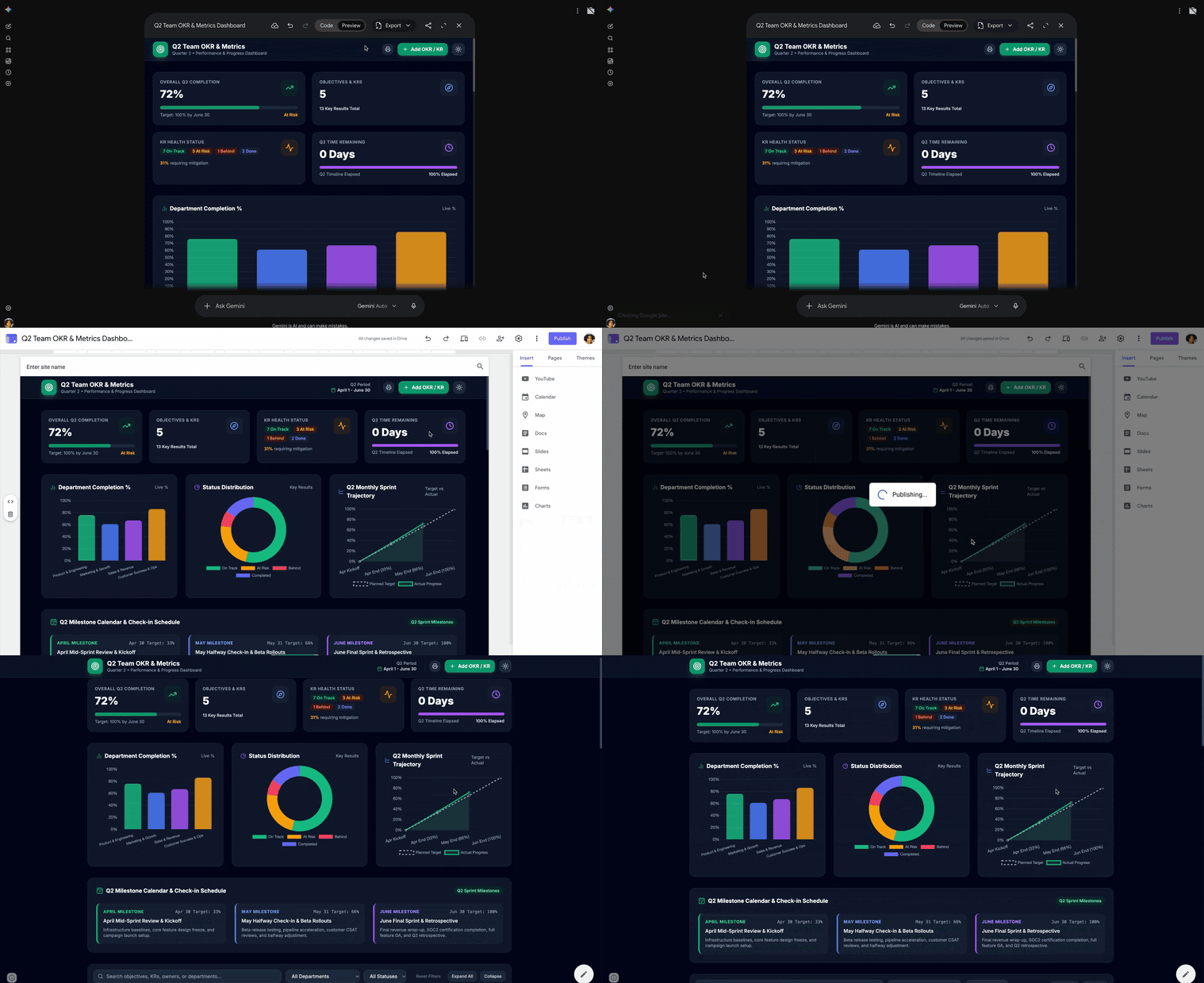
Also on October 19, Google made it possible to publish an app you built in the Gemini app as a Google Site. In the Gemini app, pick Export, then Google Sites, and your app opens as a private Sites draft, still fully interactive, that you can add to, publish and share like any other Site. In Google’s example, it’s a team’s OKR dashboard.
This is a bit like what we do at lilAgents, where we send proposals and reports as web pages instead of PDFs. A PDF goes stale the moment you send it. A live page you can update on the fly, so after it’s in your client’s hands you can fix anything or update anything and never worry about them reading an old, out-of-date or wrong version. And because it’s HTML, it’s so much more flexible: give Gemini a screenshot of your own website and ask it to match the look, instead of fighting a PDF template.
There are a lot of ways small business owners could use this to stop sending static files: a quote estimator for your website, a project dashboard a client can check, or a price sheet that’s always current. It’s a very nice entry point. It works for Workspace customers, Workspace Individual and personal Google accounts, on web, Android and iOS, as long as Google Sites is turned on for you.
ChatGPT has its own version of this, called Sites, and as of October 15, Plus and Pro no longer have a fixed limit on how many you can create (usage and storage limits still apply). That’s worth calling out if you’re already paying for ChatGPT.
My call: use it. Build one small tool you’d otherwise send as a PDF and publish it.
Image: Google Workspace Updates, Gemini apps to Google Sites
Canva Craft: use it
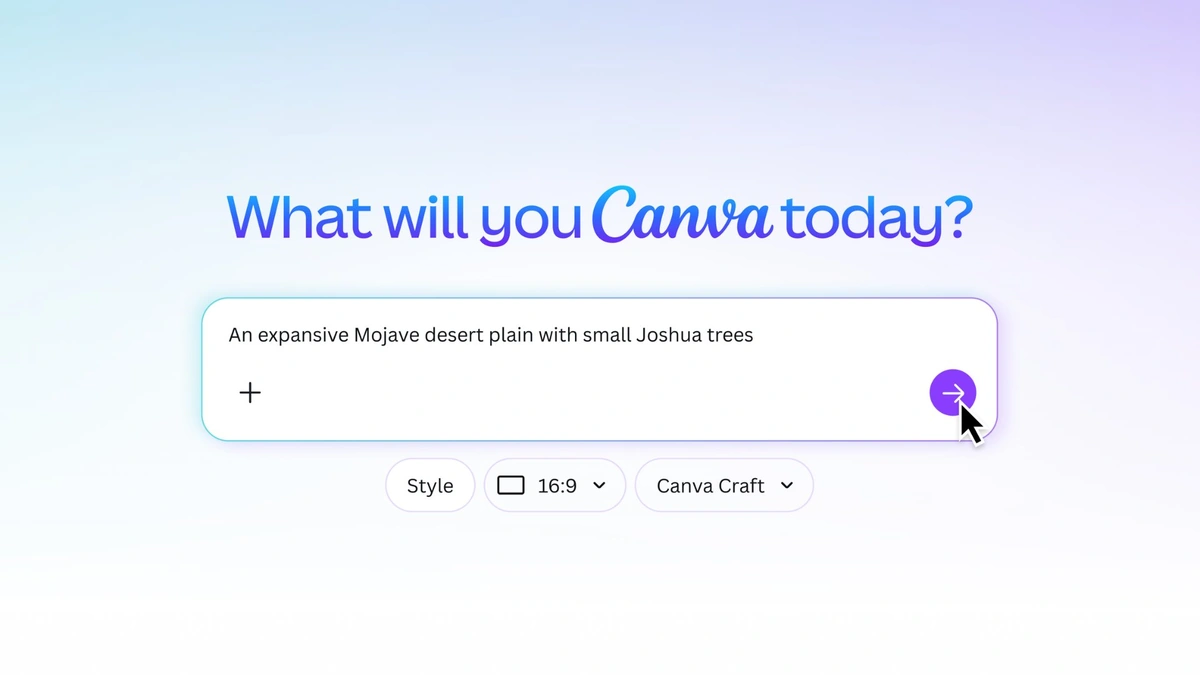
On October 22, Canva released Canva Craft, an image model that makes images up to 2K in more than 30 aspect ratios. It’s in Canva now for every Canva user worldwide, free accounts included, and developers can use it through Canva’s public API. To try it, open Dream Lab from the bottom left panel and pick Canva Craft.
I was confused about what Craft actually is, so here’s the answer: it’s Canva’s own model, built and trained from scratch by Canva Research, their in-house AI lab, so there isn’t an OpenAI or Google model underneath it. It works in two steps: a planning model reads your prompt and writes out the composition (what goes where, how big, and any text), then a second model draws the image from that plan. It was trained heavily on millions of templates from Canva’s library, like posters, social posts, menus and infographics, which is why it’s better at layout and legible text than most image models. On DesignArena, which ranks AI design models by crowd votes, it debuted as the fourth best image model, putting Canva second among AI labs, behind only OpenAI.

Here’s why I think owners should pay attention. People are getting more sophisticated, and they can tell when something was generated with AI just by looking at it. That goes for the menu in your restaurant, your billboard, your flyer, anything. A model trained on real design is a better shot at images that don’t look like AI slop. Cody Weight told us on Retooled that a realistic rendering that used to take two weeks now takes a minute, and that’s the kind of thing that’s now open to everyone.
If you’re already using Canva as a small or medium business owner, this is an obvious one to try. It can also get you out of trouble if you’ve been grabbing photos off the internet without permission: making your own images in the tool you already use is a lot safer than that. Canva’s post doesn’t spell out how many Craft images each plan gets, and the faster versions, Craft-fast and Craft-ultrafast, are still “upcoming.”
My call: use it, especially if you already pay for Canva.
Images: Canva Newsroom, Introducing Canva Craft
ChatGPT locked chats: use it
On October 20, OpenAI added locked chats. A locked conversation stays in your account but disappears from your chat history, your pinned chats and search, and it only opens with your 4-digit account PIN or your device’s own sign-in. To lock one, open the chat’s more options menu (•••) and pick Lock chat.
What’s really great about that is how much people paste into ChatGPT now. If you’ve talked through banking, a legal issue, a personnel problem or a personal relationship, you don’t want it popping up when you share your screen in a meeting or hand someone your phone. Spend ten minutes searching your chat list for words like bank, payroll, lawyer, contract and medical, and lock what comes up.
It’s rolling out gradually to Free, Go, Plus and Pro on the web, the iOS and Android apps, and the desktop app (OpenAI doesn’t list Business or Enterprise). One thing to know: it hides the chat on your screen, and your retention and model-training settings stay exactly as they were.
My call: use it. It’s a great feature.
Claude Duet: wait
On October 21, Anthropic opened a research preview of Claude Duet, a separate Claude app that works as a proactive agent. Each morning it sends a short brief on what matters across your connected apps, it messages you during the day only when something needs you, and it runs tasks on its own virtual machine with its own browser, so it keeps working when your laptop is off. Before it sends a message, makes a payment, signs a document or deletes anything, it shows you exactly what it’s about to do and waits for your approval, and some things, like trading securities or moving money between accounts, are off-limits even with your approval. That’s the right default for an agent that’s acting on your accounts.
I actually have Claude Duet, and to be honest with you, I haven’t tried it yet. Anthropic is upfront that it “still might misread a thread or miscalibrate what’s urgent,” you can’t watch its browser yet, and it lives in its own app, separate from the main Claude app and the rest of your Claude work. So for me it’s not quite a replacement for the agent setup we already run. Jesse Miller’s assistant has its own desktop and browser it signs in from, and that’s the direction all of this is going.
Right now it’s waitlist only, for Pro and Max subscribers in the US, and it shares your plan’s usage limits, background checks included.
My call: wait. Get on the waitlist if you’re on Pro or Max, and give it low-stakes work first.
Copilot Code: skip
On October 21, Microsoft announced Copilot Code, a coding experience in Microsoft Copilot for building trackers, dashboards and small tools from a plain-language description. There’s a promo video in the post, but it’s on Microsoft’s own player, so I can’t embed it here.
It’s only rolling out through Microsoft’s Frontier program, and that comes with a lot of barriers. At work, you need a Microsoft 365 Copilot license, your organization has to opt into Frontier, and you sign in with your work account. Individual subscribers on Microsoft 365 Personal, Family, Premium and Pro can opt into Frontier in Word, Excel or PowerPoint on the web, but Microsoft doesn’t say whether Copilot Code is one of the features they get.
My call: skip it for now. You could try if you’re already in Frontier, but if you want to build a small tool this week, Gemini apps to Sites (above) gets you there without the hoops.
That’s the week. If someone on your team would get something out of this, forward it their way.