
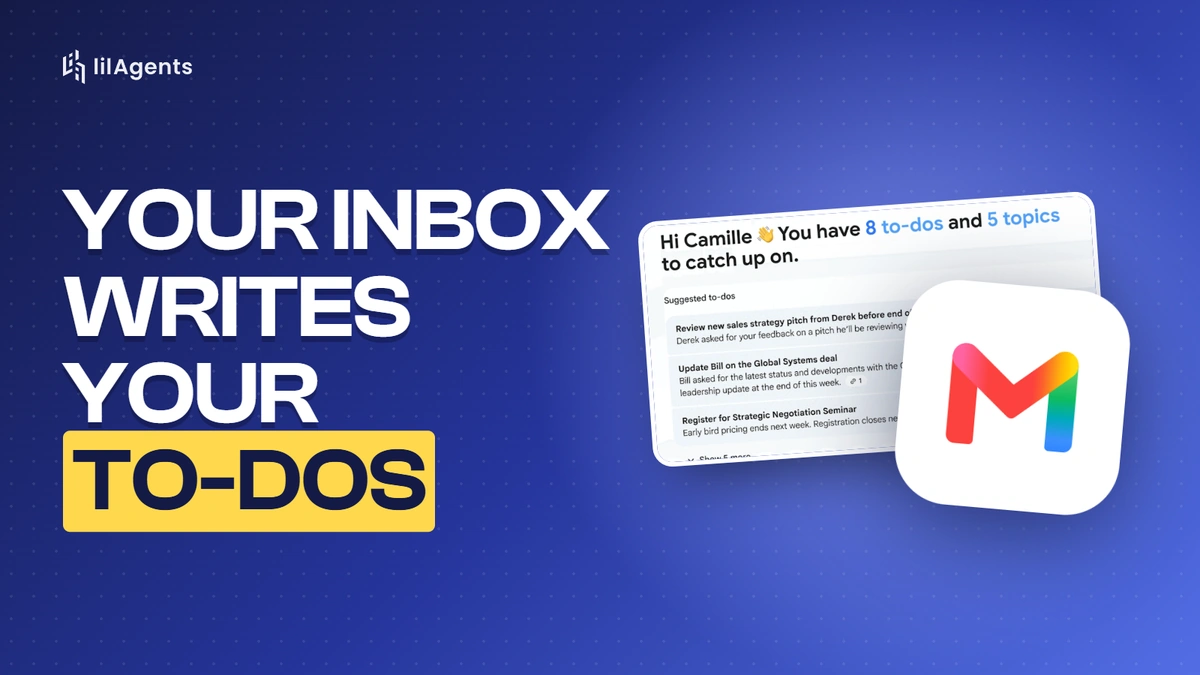
This week’s pick is two Google features that work best as a pair: Gmail AI Inbox, which pulls your to-dos out of your email, and the new next steps on Google Meet’s screen after a call, which draft the follow-up for you.
Gmail AI Inbox and Meet next steps: use both
On October 15, Google announced that Gmail’s AI Inbox is rolling out to paid Workspace users. It’s a new view in Gmail with two parts: suggested to-dos, which pulls the action items, deliverables and deadlines out of your email conversations, and topics to catch up on, which summarizes your most important topics across long threads.
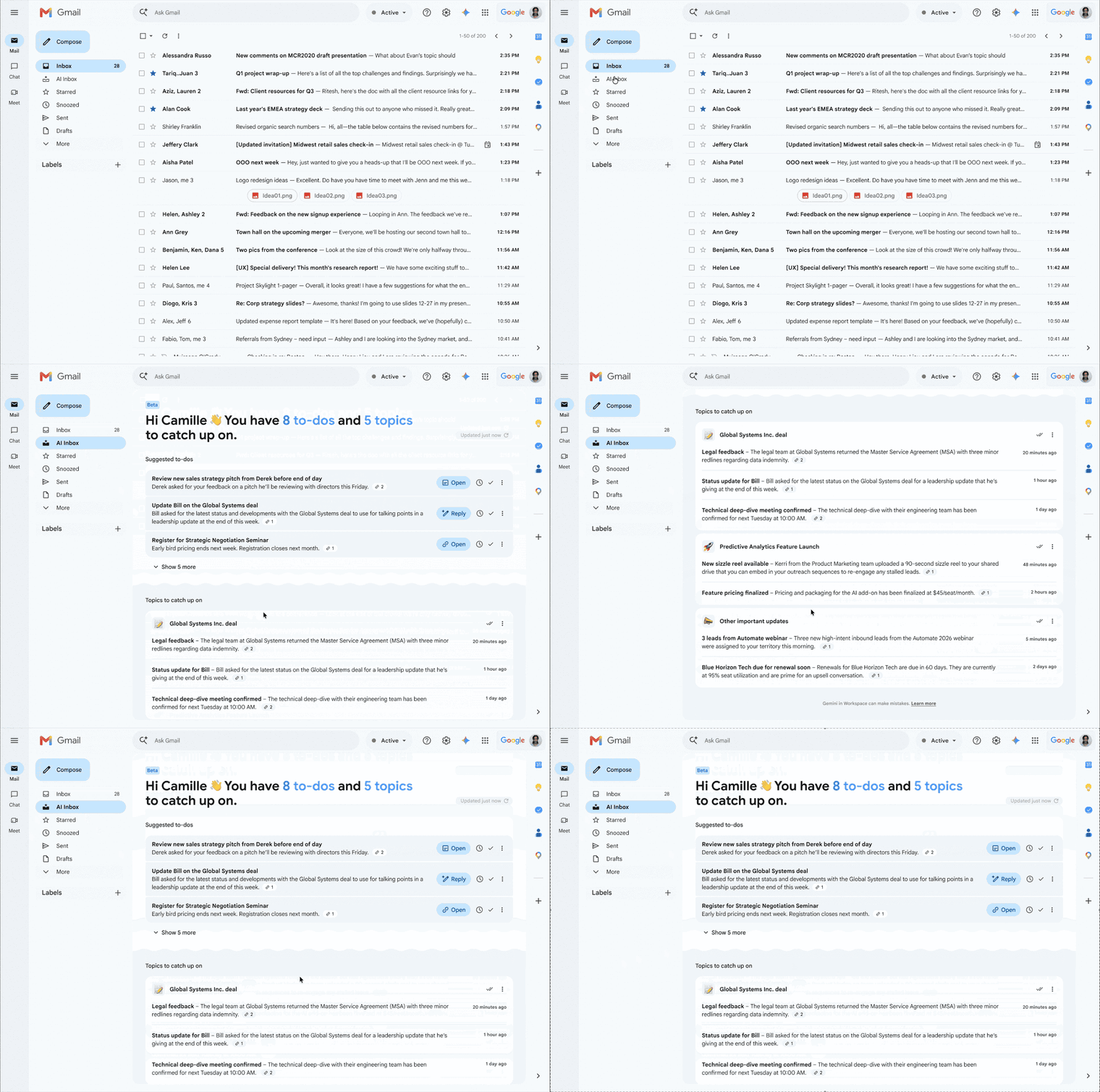
If you use Google Workspace, it’s a really helpful tool, in my opinion. The to-dos come from what people actually asked you for in email, so it might end up being a place you check pretty routinely, just to keep tabs on what you promised and what you should be doing.
Google lists Business and Enterprise Starter, Standard and Plus, Google AI Pro for Education and Frontline Plus, so it’s basically for everyone on a paid plan, which is great, though the Starter and Education editions get it later, “in the coming months.” The interesting limit is that it’s only for users in the US with English (US) as their language. Rapid Release domains started getting it October 12, and Scheduled Release domains (the default, and what most small businesses are on) start October 26, so it can take a couple of weeks to show up.
Meet’s next steps
The other half: instead of the useless “You left the meeting” screen with nothing else on it, Google Meet now shows next steps when the call ends. Under “Routines for this meeting,” you can draft the follow-up email in Gmail or export the action items to Google Tasks, powered by Gemini and Workspace Studio, and Gemini pings you in Chat when the draft is ready.
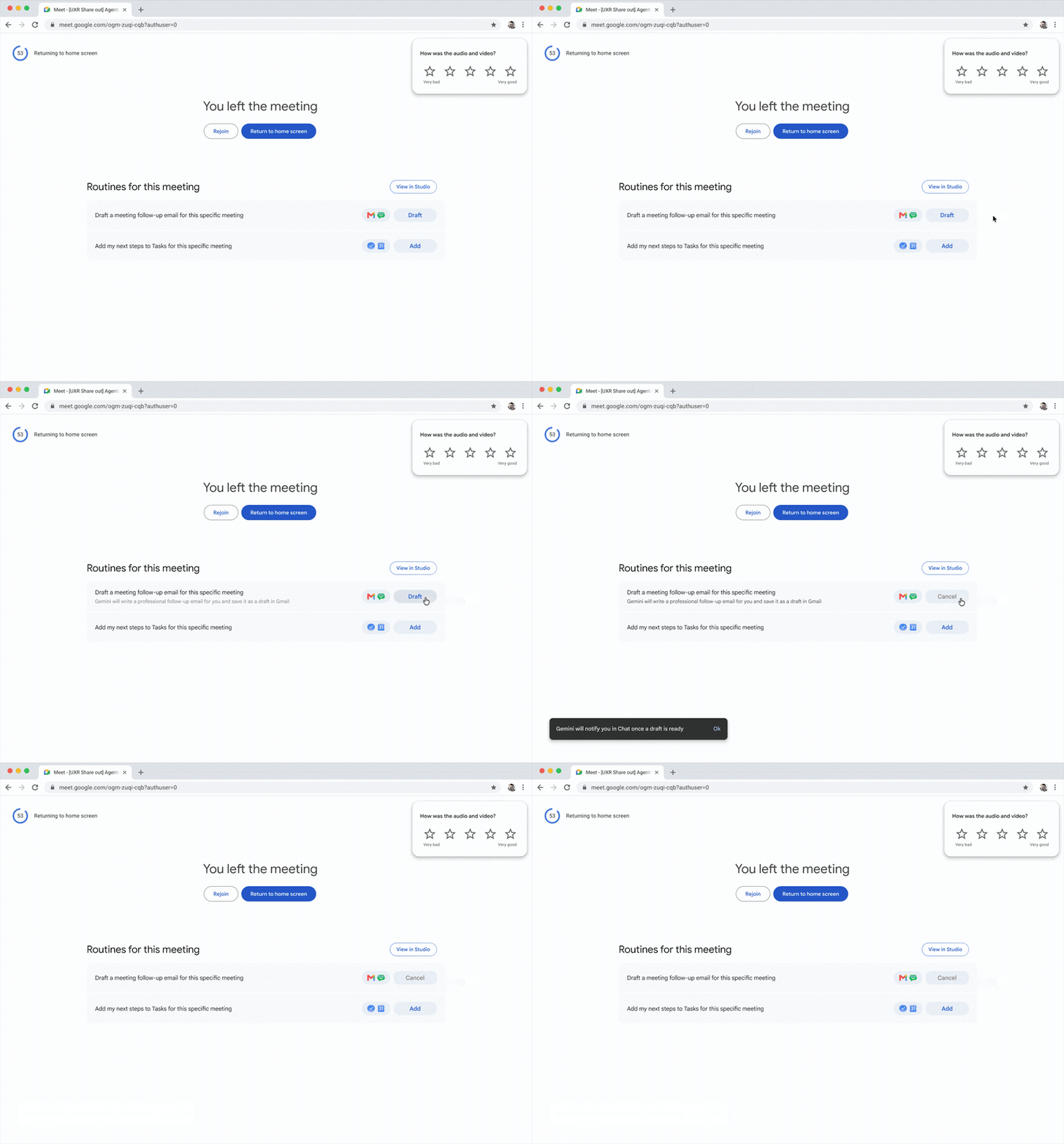
This is very similar to what we do. At lilAgents, a set of routines and Claude take care of this for us, and it looks like it’s increasingly being built into the tools themselves. It even covers recurring meetings: after a weekly meeting, one switch sends its next steps to Google Tasks automatically every time.
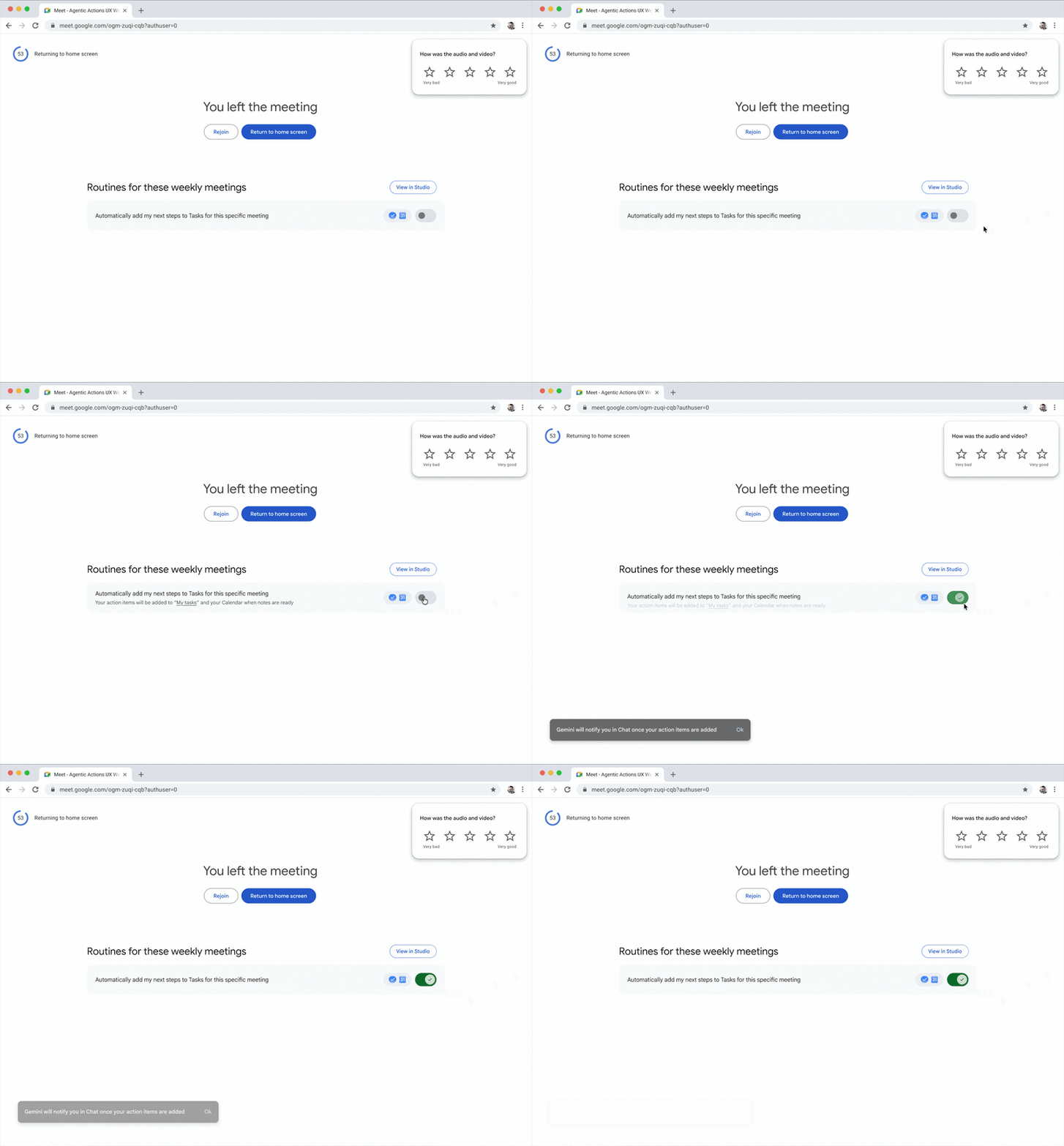
If you’re on Google Workspace, you should absolutely be taking advantage of this, because it makes getting action items done way easier. And if you use Google Tasks, this is where it pays off.
The fine print: “Take notes for me” has to be on during the meeting, and next steps is on Business and Enterprise Standard and Plus and Google AI Pro for Education (Business Starter is left out). It started rolling out October 5, it’s on by default, and an admin can turn it off.
Google is adding the notes, too
The only thing missing from AI Inbox is your meetings, and Google is working on that. On October 12, Google emailed us that our Business Starter account had been picked to try “take notes for me” in Meet at no cost, for a limited number of meetings, and the trial switched on three days later. Google wants you using Workspace for everything instead of Fathom or the other note-takers. If you have Google’s AI note-taking in your meetings and AI Inbox in Gmail, between the two you could cover a lot of your to-dos automatically.
How I’d use them together
I’d pair them and use both at 100%. Here’s what that looks like for, say, a remodeler doing a kitchen estimate over Meet:
- Turn on “Take notes for me” when the call starts.
- When you hang up, use the next steps screen to draft the follow-up email (what you walked through, what you’re sending and when) and send the action items to Google Tasks: the revised estimate, the tile samples, the call to the plumber.
- The next day the client writes back asking you to price the bathroom too. That shows up in AI Inbox as a suggested to-do without anyone writing it down.
- Monday morning, open AI Inbox and Google Tasks, and everything you promised in meetings and in email is in two lists, with nobody retyping a note.
That’s the part that will make a real difference for people: the follow-up stops depending on someone remembering it.
The catch
Google says “There is no admin control for this feature,” so as the owner you can’t turn AI Inbox off for your team, which is crazy. Each person can hide it for themselves (Settings, See all settings, Inbox, then uncheck Show AI Inbox), but nobody can make that call for the whole company. Hopefully you want it, because Google is really pushing this one. And it’s a summary of your email, so check each to-do against the actual thread before you promise anything.
My call: use both. Ten-minute test: on your next Meet call, turn on “Take notes for me,” use the next steps screen to draft the follow-up and send the tasks to Google Tasks, then open AI Inbox the next morning and compare its list with what you’d have written yourself.
Images: Google Workspace Updates, AI Inbox and Meet next steps
The rest of this week
Google Deep Review: use it
On October 14, Google Research opened Deep Review to everyone. It gives rigorous feedback and technical verification on complex documents: it splits a long document into sections, reviews them in parallel, then cross-checks and fact-checks the whole thing, flagging weak arguments, math and logic errors, missing context and bad citations. It was built for technical and academic papers first, but Google lists contracts and proposals (“verifying internal consistency”) and legal and financial documents as uses too.
It made me think of my conversation with Christopher Woods Sr. on Retooled about blueprints: AI does a much better job when it has something to check against, like a blueprint or a 3D model, than on a historic house nobody ever drew up. A proposal with real numbers in it is the kind of blueprint Deep Review can check against itself.
To try it, go to Deep Review, sign in with Google, and upload a file or paste in the text. Google’s post says PDFs and plain text for now, though the upload box also takes Word, PowerPoint, Markdown and HTML files. You get two free reviews a week, run on Gemini 4 Argon at the Medium setting. After that you add your own Gemini API key and pay Google’s normal API rates, which its FAQ puts at about $3 for a 40-page document on Low with Gemini 3.8 Flash, up to about $20 on Extra High with 4 Argon.
The same key works with Deep Review’s API, which signs in with your Google account, takes a file or a Google Drive file, and lets you pick how deep the review goes, from Low to Extra High. And if you use Antigravity, Google’s AI coding tool, it’s built in: Google says you can run the same kind of review there with the /teamwork-preview command, part of Teamwork, Antigravity’s multi-agent orchestration framework, on paid plans.
If you want the background, Google’s paper on the tool behind it found it caught more math errors than a single pass of the model, the same tool has been offered to authors submitting to NeurIPS and ICLR, and Google DeepMind has an essay on why checking the work is becoming the bottleneck.
Two notes before you upload a client’s documents. Google’s post says uploads are never used to train its models, but the tool page also has an option to share yours, so leave that off. And treat it as a second read on the document, and keep your lawyer for the contract itself.
My call: use it. It’s very interesting, and absolutely something to try out. Run your next proposal or bid through it before it goes out.
Shopify Sidekick for checkout: use it
If you have a Shopify store, Sidekick, Shopify’s built-in assistant, can now help with checkout and customer accounts. In the checkout and accounts editor on desktop, it explains your settings, recommends apps and searches Shopify’s Help Center for you. In the Checkout Blocks app, it helps you plan blocks and payment, delivery and validation functions. Either way it gives you the steps, and you make the change yourself.
Checkout pages can be really important for leaving a good impression. It’s the last screen a customer sees before they pay, and the one where a confusing delivery option or a missing payment method costs you the sale. If you’re on Shopify Plus, you can build basically a custom checkout page with Checkout Blocks (the app is free and made by Shopify, but advanced checkout customization is Plus-only), and Sidekick can help you plan it. On any plan, ask it to walk you through what you have now: which payment methods you offer, what your delivery options look like, and whether an app would fix whatever’s bugging you about it.
My call: use it if you’re on Shopify. It takes ten minutes to ask.
ChatGPT in your Chrome tabs: wait
See the post by @ChatGPT on X
On October 15, OpenAI updated its ChatGPT extension for Chrome. In Chat, ChatGPT can now look across your open tabs, in Work it can control them (send messages, fill out forms, download files, group tabs), and the side panel has your whole ChatGPT history. OpenAI says it’s for all ChatGPT plans, but Work, the part that controls your tabs, has been limited to paid plans other than Go since July. OpenAI’s page for the extension has the details.
Didn’t we have this before? I thought we had ChatGPT in the browser already, and we sort of did: this is the extension that used to be OpenAI’s Codex extension, renamed ChatGPT in July, and the older ChatGPT search extension is still listed separately. Either way, a lot of folks are not happy with the change. A few days after the update, the extension’s Chrome Web Store listing, with about 7 million users, was down to 1.8 stars, and the recent reviews say the update broke it, the side panel just copies chatgpt.com, and old sessions and Codex are gone. For some people, it just says ChatGPT for Chrome is coming soon.
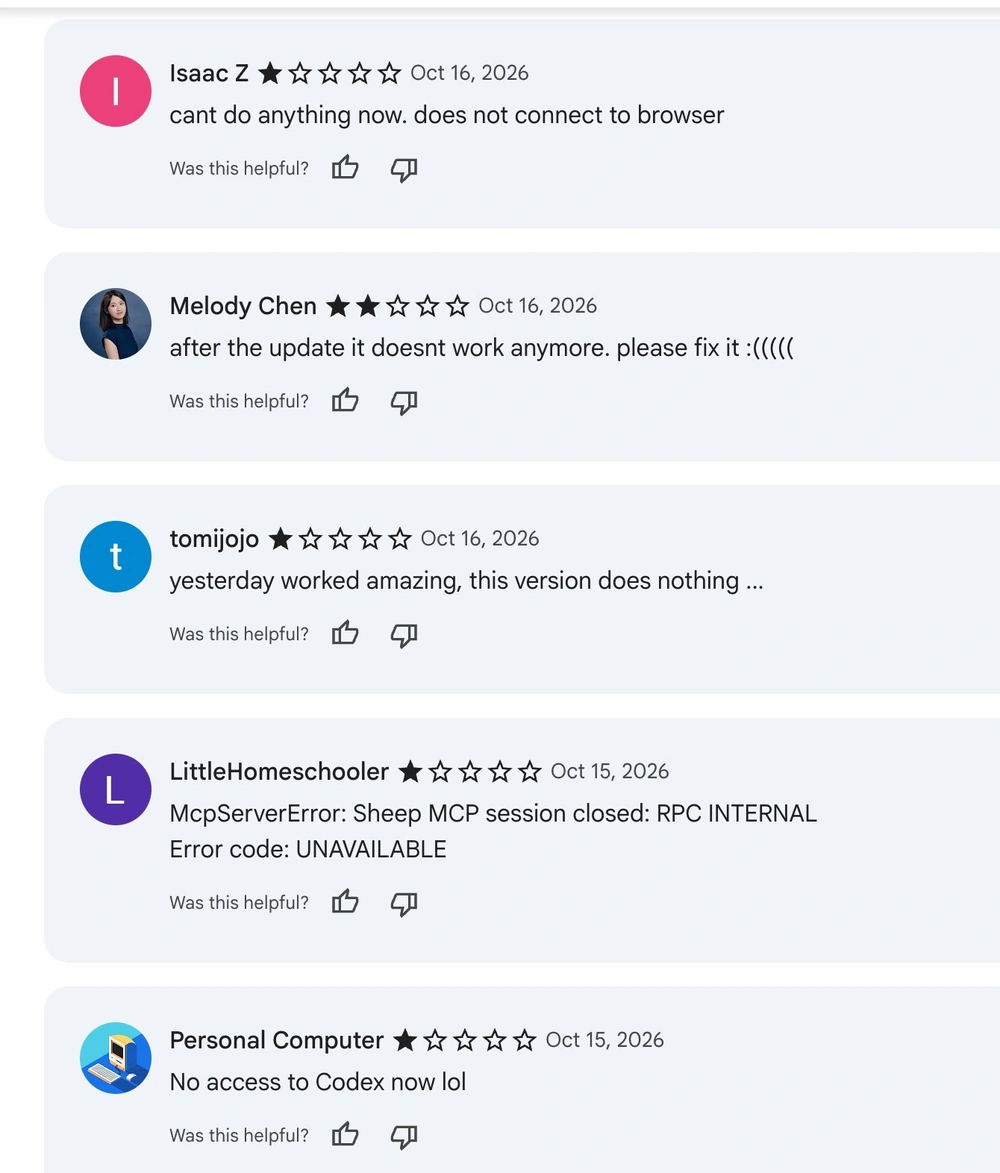
This seems like a pretty big negative change for a lot of people, so I’d wait until it works for everyone. When it does, start with Chat reading your tabs (comparing quotes across three supplier tabs is useful), and keep a person on anything Work would send, submit or pay, since it’s acting in tabs where you’re logged into your email or your CRM. We’ve written about where a person still has to sign off before.
ChatGPT Slides: wait
ChatGPT can now build a deck from a conversation, your files or an outline, let teammates edit it at the same time, and export it to PowerPoint, PDF or Google Slides. It’s “rolling out to eligible Pro, Business, and Enterprise users with Space access,” so Plus isn’t included, and Space itself is still rolling out.
Interesting, but you can wait on it. Honestly, if you’re not doing your slides in HTML and CSS yet, you should be: an AI can build and edit a web page far more easily than a slide file, and you share it with a link.
Gemini 4 Argon in the Gemini app: skip
Google’s newest top model is now in the Gemini app for Google AI Pro and Ultra subscribers. Those are Google’s personal plans, and the post says nothing about Workspace business accounts, so for most teams nothing changes this week.
The post does include this video, which is interesting: a catering business uses Gemini 4 Argon to build a proposal deck in Slides from files in Drive, draft the email in Gmail, and set up a standing task that starts a deck and updates a client tracker for every new client email. That’s so weird to me, since it’s exactly the kind of work you’d do in a business account, and business accounts can’t get it yet.
My call: skip it until it shows up in your business account.
That’s the week. If someone on your team would get something out of this, forward it their way.