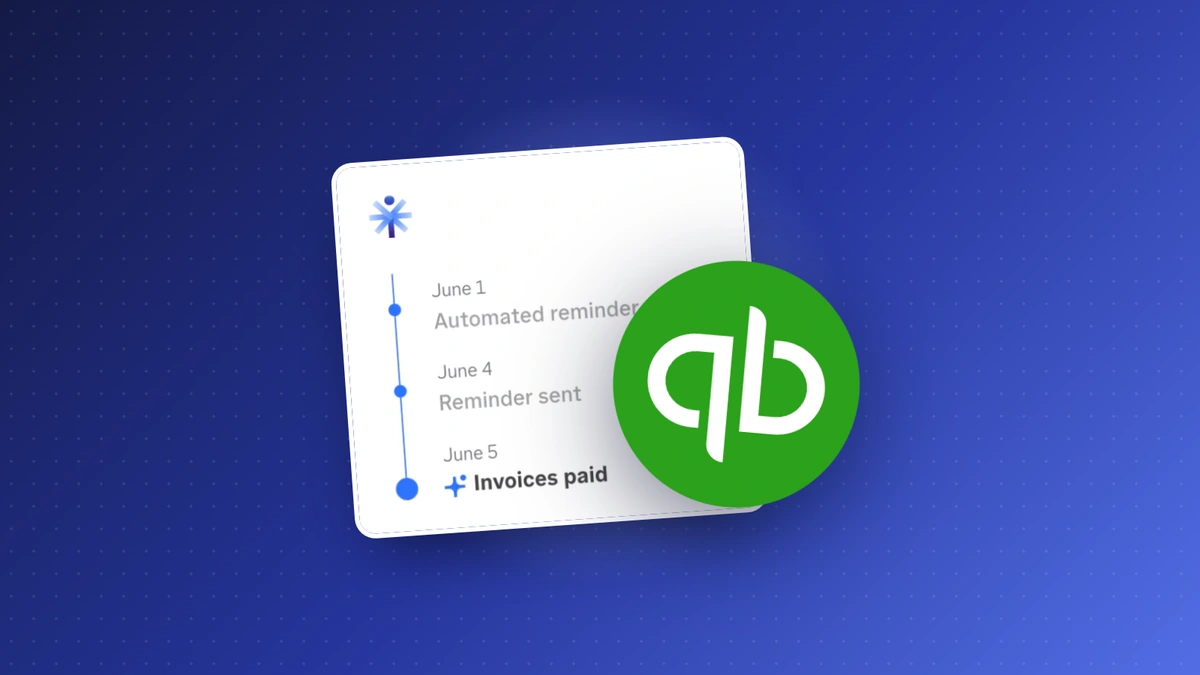
This week’s pick is for anyone who’s ever had to chase a customer for money: QuickBooks invoice reminders, which draft payment reminders for anything unpaid and send them once you approve.
QuickBooks invoice reminders: use it
One issue we continually come across is customers remembering to pay for work that’s already done. In its fall release, Intuit added AI-powered invoicing to QuickBooks: Intuit Intelligence drafts invoices for your review and, in Intuit’s words, “with your approval, sends prioritized payment reminders for anything unpaid.” It’s in beta, and anyone on QuickBooks Essentials through Advanced gets it. Simple Start isn’t on the list, unfortunately. The U.S. rollout started October 27, with other countries to follow.
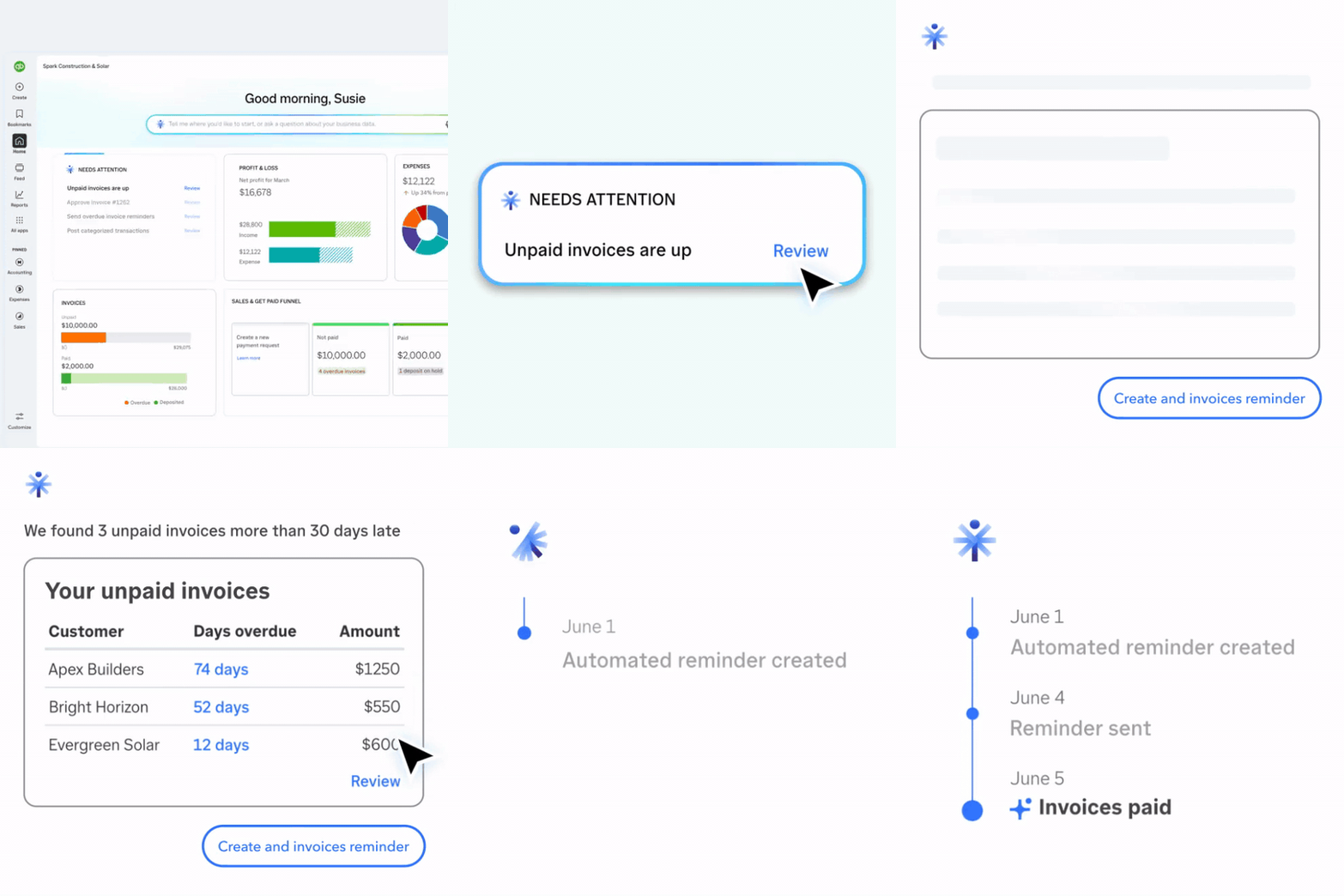
Intuit claims businesses get paid 4 days sooner on average. What’s also nice is that Bill Pay now turns vendor emails into bills ready to approve, on Simple Start and up, and Vendor Direct pays eligible bills the same day at no extra cost if you’re on Bill Pay Basic, Premium, or Elite. Eligible means a one-time bill under $25,000 from a vendor you’ve already paid through Bill Pay, whose invoice has a link to pay by card.
We’ve seen this on Retooled, too: Ronnie Kahan, president of Apollo Painting & Wallcovering, sometimes waits 90 to 120 days to get paid. And Jonathan Klemm, whose episode comes out next week, ended up building his own platform because his tools never really showed the cash position he was in at any given time. This should help with that.
How to turn it on
As far as I can tell, there’s no setting to turn it on or off, and Intuit doesn’t list one. It’s just part of QuickBooks on those plans, so if you don’t see it yet, the rollout hasn’t reached you.
The catch
It’s a beta, and Intuit’s own fine print says Intuit Intelligence “can make mistakes” and that each account gets limited capacity each month. These reminders go to your customers, so read the first few before you ever approve one, and never just accept them. Make sure it’s right before an automated email goes to an important client, because you never want that one to be wrong. And the 4 days is Intuit’s own number: it compares U.S. customers using its AI-drafted reminders with standard reminders sent to the same customers, from March 2025 to March 2026.
My call: use it, as long as you really test it first. Ten-minute test: open your three oldest unpaid invoices and read the reminder it drafts for each one before you approve anything.
Image: Intuit, What’s new in QuickBooks: Fall 2026
The rest of this week
Gemini makes files: use it
On October 29, Google made it possible to create, preview, and edit files right in the Gemini app. Ask for a slide deck, a Google Sheet, a doc, or a PDF, and you can preview it in the chat, open it full screen to type edits yourself, or have Gemini refine it, then open it in Slides or Sheets, download a PPTX or PDF, or save it to Drive.
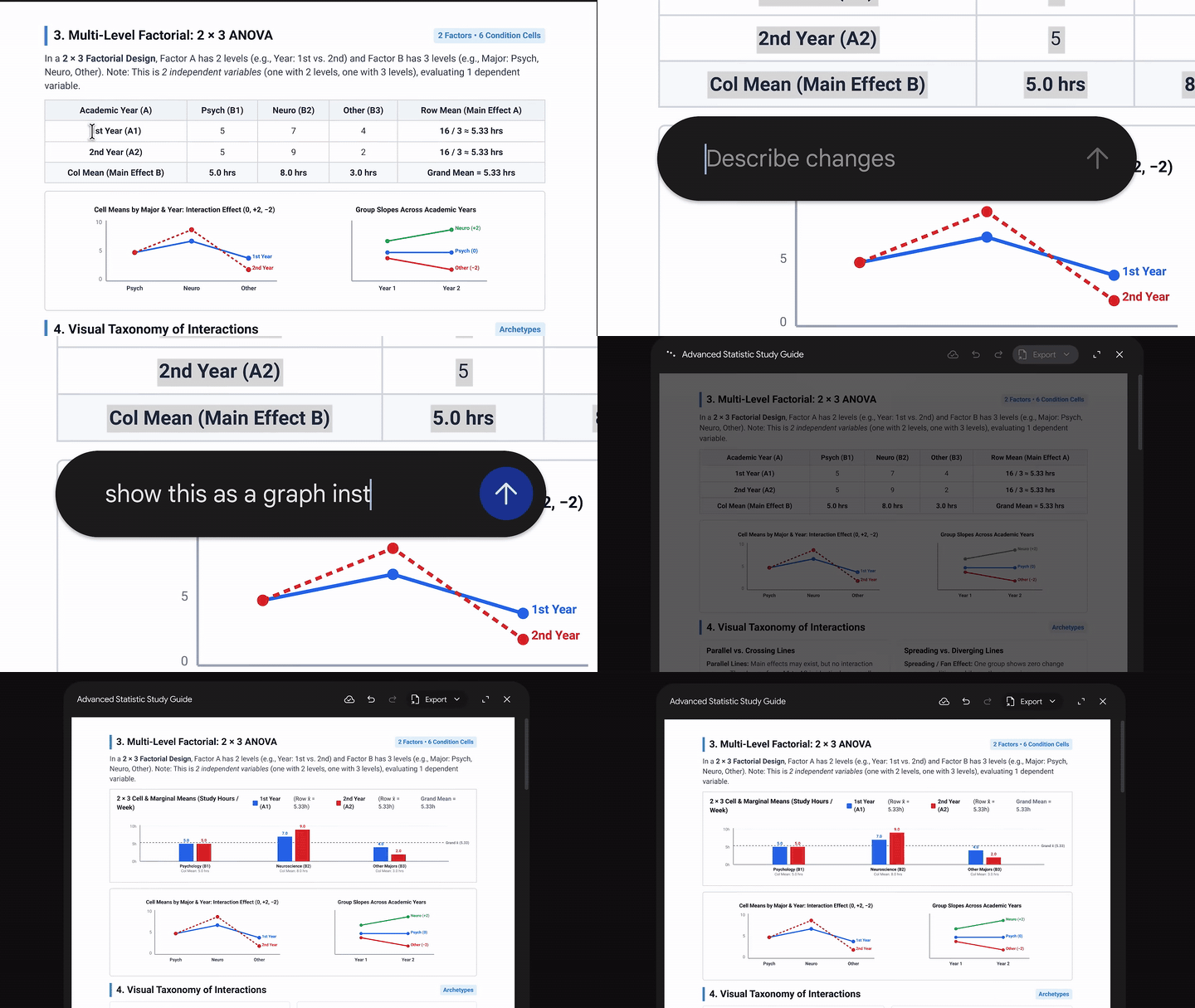
It’s definitely something helpful to use, especially if you’re a regular Gemini user. It’s available now to every Google Workspace customer, Workspace Individual subscribers, and personal Google accounts. PDFs work on the web and on mobile, and everything else (docs, sheets, slide decks, Markdown, TXT, and code) is web only.
My call: use it. Ask it for a one-page price sheet as a PDF, then fix whatever’s off right in the chat.
GIF: cut from Google’s video, Generate, edit, and preview files in Gemini
Slides deck edits: use it
On October 30, Google announced that Gemini in Google Slides can now edit a whole presentation at once. From one prompt in the side panel, you can refresh visual styles like fonts, backgrounds, and color schemes across the whole deck, or have it match the style of another presentation. It can also update content throughout the deck, grounded in your files in Drive, and combine slides into one or add new ones. Ask it to make the titles on all slides the same font size and color, and it’ll just understand that. The edits land as if you made them, so undo and version history still work.
It’s on Business Standard and Plus, Enterprise Standard and Plus, and Google AI Pro and Ultra, in English only at launch. The rollout started October 29, so it’s arriving now-ish, though Google says it could take more than 15 days to show up for you.
My call: use it. Open last year’s sales deck and ask it to make every title the same font size and color.
ChatGPT and iCloud: use it
On October 27, OpenAI added iCloud Mail and Calendar to ChatGPT. This one’s really only for people in the Apple ecosystem: once you connect them, ChatGPT can find emails, catch you up on your inbox, check your schedule, and update calendar events. It’s on every ChatGPT plan, on the web, the desktop app, and iOS. Not much more to say there.
My call: use it, absolutely, if you’re on an iPhone or a Mac and you use ChatGPT.
Excel clean data and accounting skills: use it
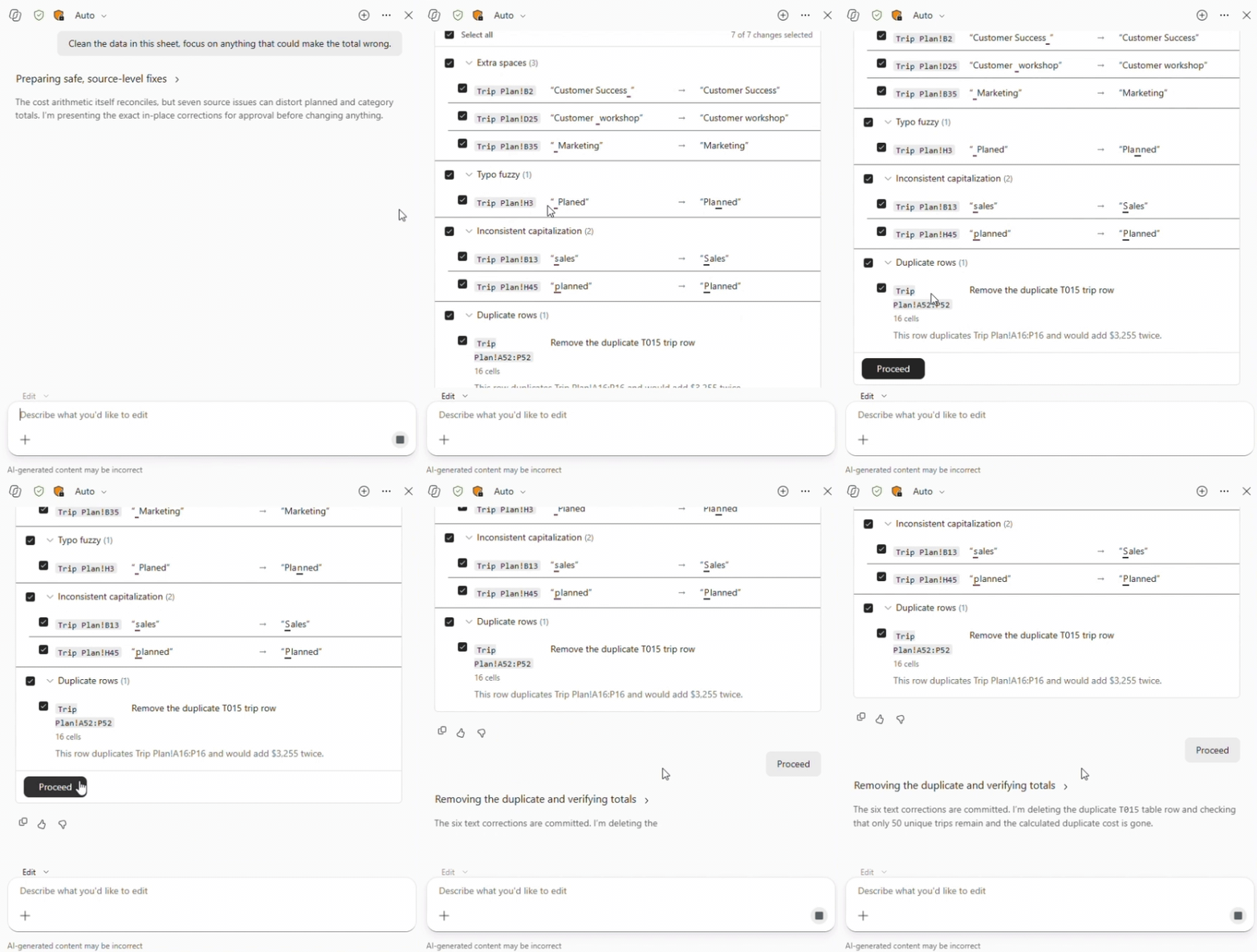
On October 30, Microsoft rounded up what’s new in Microsoft Copilot for October, and two Excel skills stood out. The clean data skill has Copilot find messy data for you: it scans a workbook for problems that are easy to miss, like duplicates, inconsistent formatting, and the wrong data types, then recommends fixes right in the file, and you approve every change. It rolled out in October, and it’s extremely handy if you’re on Microsoft 365.
The accounting skills are also pretty great. They help you reconcile accounts, prepare journal entries, and analyze financial performance for reporting, working right in the workbook and keeping every change visible and reversible so you can review the results. They reached Microsoft’s Frontier program in October and roll out worldwide in November.
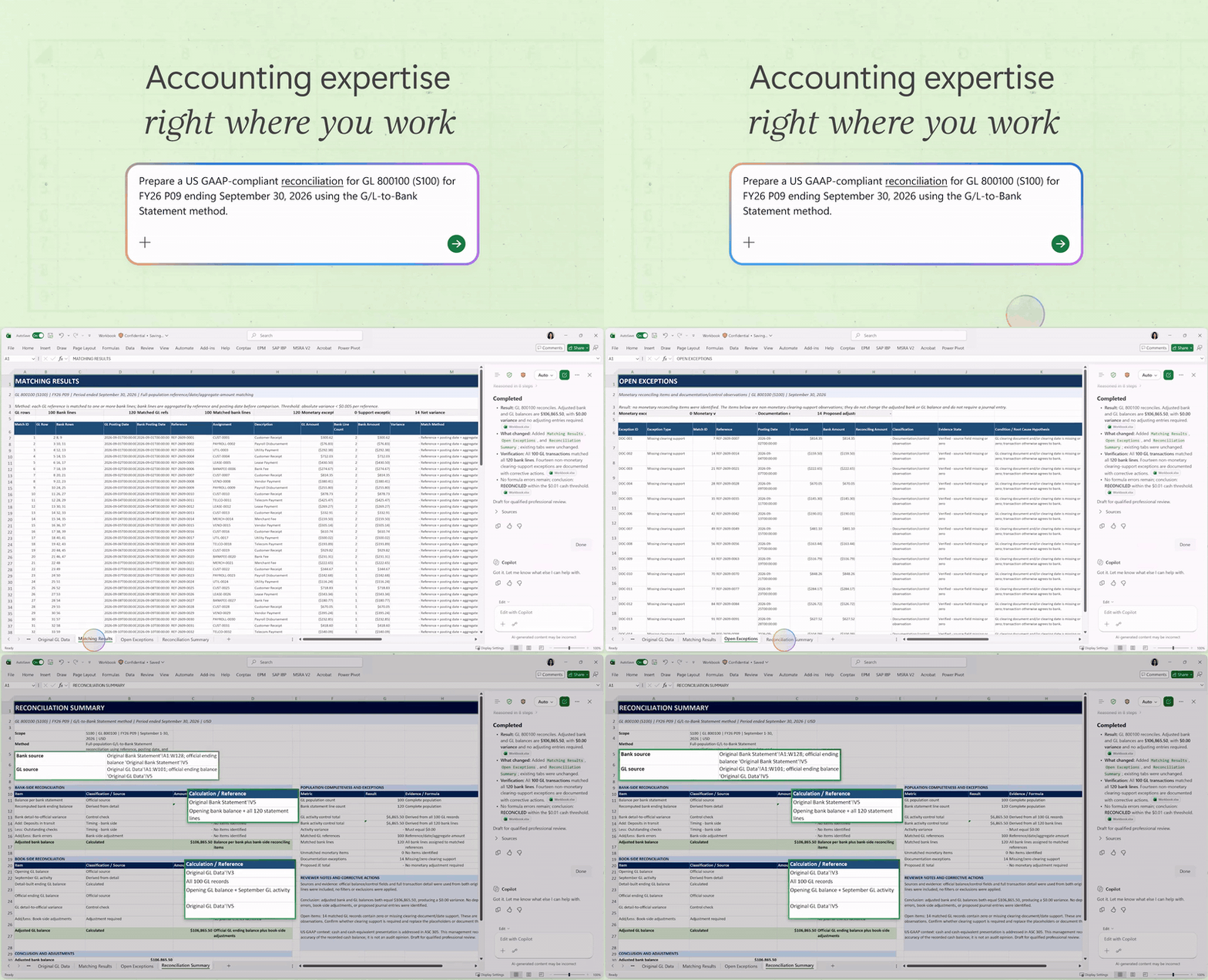
My call: use it if you’re on Microsoft 365 with Copilot. Clean data is there now, and the accounting skills roll out worldwide in November.
GIFs: cut from Microsoft’s Clean Data and Excel Accounting Skills videos in What’s New in Microsoft Copilot: October 2026
Shopify WhatsApp automations: wait
On October 28, Shopify added WhatsApp to its marketing automations, which is pretty cool. You can start from templates for abandoned browse, abandoned cart, and abandoned checkout, or add WhatsApp to your own automations, under Messaging > Automations. Shopify’s help page on marketing automations has more context.
Messaging people who abandoned checkout is nice, and it’s already nice over SMS and email, but you need a sense of how many of your customers actually use WhatsApp. By default, automations only go to customers who’ve subscribed to marketing on that channel, and WhatsApp messages are charged per message at the rate for each recipient’s region (you also need the Basic plan or higher). I’m not sure what value WhatsApp specifically brings unless you have a big WhatsApp audience.
My call: wait. If you try it, do it in small, controlled groups of just some of your customers, not all of them, maybe a couple of test ones to see. And set a monthly spending threshold in Shopify Messaging, so you get a warning when the charges reach the amount you set.
Texting your dot: wait
On October 28, OpenAI started rolling out texting your dot. Your dot is the always-on agent OpenAI added to ChatGPT in September, and now you can finally text it over iMessage or RCS, and it can text you first with updates, which is pretty cool. It’s a beta for Pro users in the U.S. only, so it’s pretty narrow, but not bad. OpenAI uses a third-party messaging provider, Linq, to send and receive the texts.
My call: wait. Unless you’re already on Pro in the U.S., you can’t try it yet.
That’s the week. If someone on your team would get something out of this, forward it their way.