

This week’s pick is probably the most exciting news I’ve seen recently: Google Apps Script has Gemini built in now, so you can describe an automation in plain words and get one.
Gemini in Apps Script: use it
If you aren’t already using Google Apps Script, it’s such a nice way to automate and connect things in Workspace. It’s built right into Sheets, Docs, Slides, and Forms under Extensions > Apps Script. It’s very developer-focused, but as a result, AI agents can use it to great effect.
On November 16, Google made the Gemini side panel in Apps Script generally available. In Google’s words, anyone can now “create, customize, and troubleshoot scripts using plain language with no coding experience required.” You basically describe the automation you want, and Gemini writes it. Google’s own examples are creating Calendar events from urgent Gmail messages, pulling and cleaning real-time data into your models, and turning Sheets tables into formatted Docs reports.
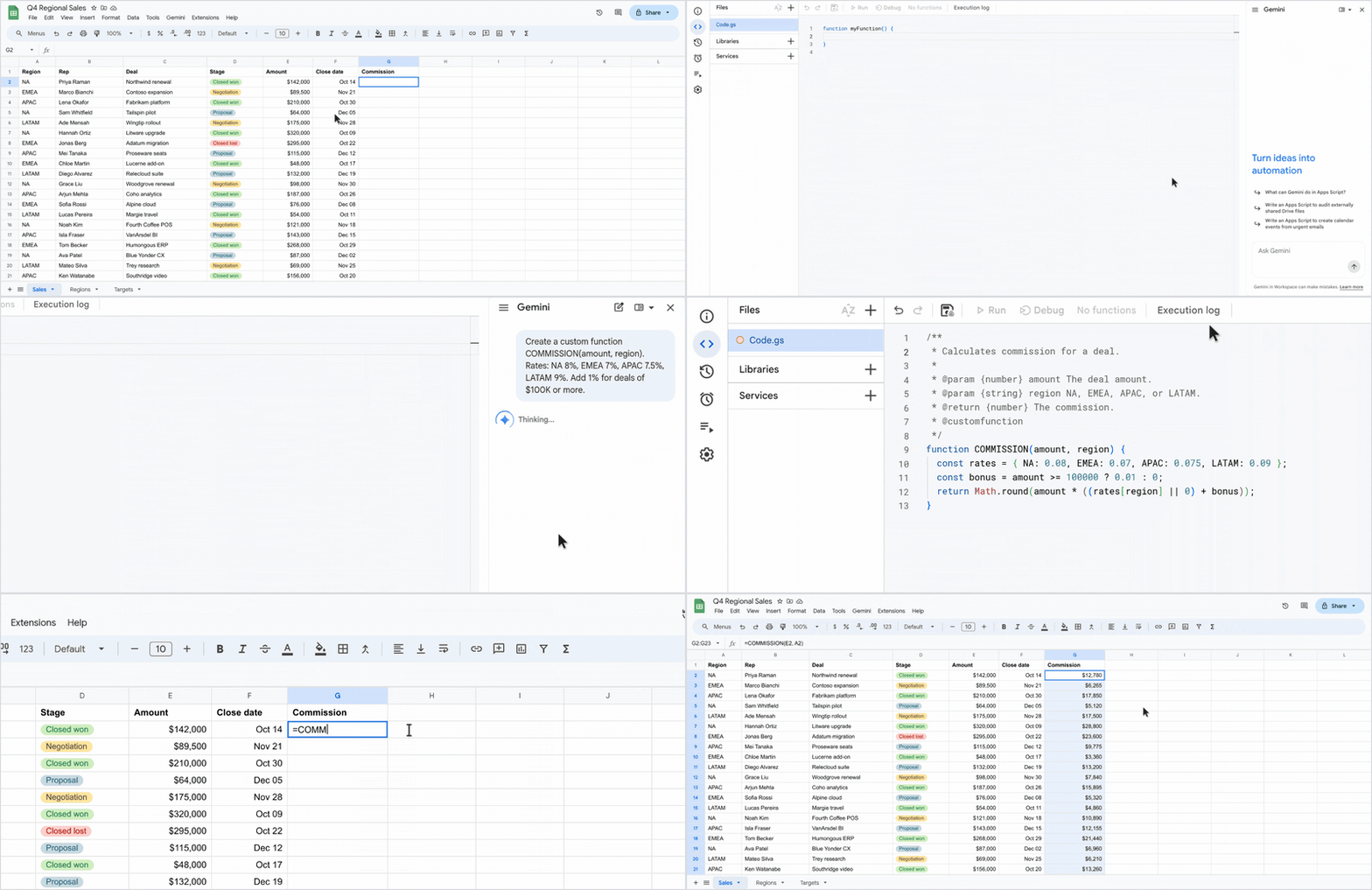
You review what it writes block by block, accepting or rejecting each change before you save, and you can keep chatting to add things like automatic time-based triggers. If something breaks, you click Fix errors in the execution log, and Gemini explains what went wrong in plain language and suggests a fix.
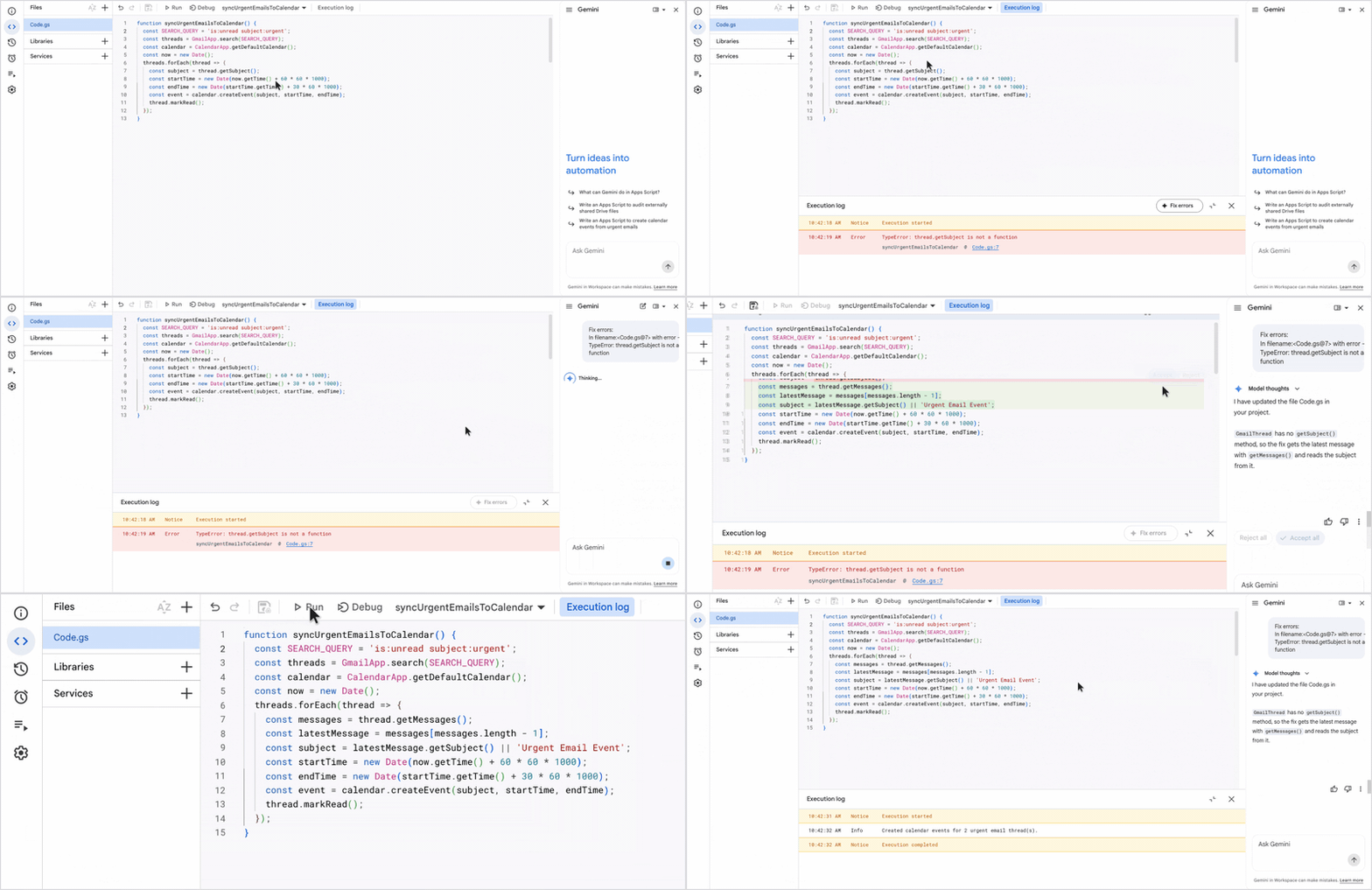
It doesn’t mean it’s perfect, but it gives you a lot of room to play around with and test automations. This is a huge improvement.
How to turn it on
Go to script.new, or open Extensions > Apps Script inside Sheets, Docs, or Slides, and look for the Gemini spark icon in the top right. The panel also opens on its own when you start a new script.
It’s in Business Standard and Plus, Enterprise Standard and Plus, and Google AI Pro and Ultra, but not Business Starter, unfortunately. The rollout started November 12 and can take up to 15 days to show up. If you’re on Business Starter and want something like it, you can just ask any AI tool to write the script for you. It’s pretty widely understood how these work. This is just that much more convenient for those who get it.
The catch
Scripts run with your own permissions. Google says they run “with a user’s existing permissions and standard OAuth consent,” so a script can touch anything you can. From a privacy and security standpoint, bear that in mind. I’d start with something that reads and reports before anything that sends email or deletes files.
My call: use it. This is an incredible addition. Ten-minute test: pick a Sheet you update by hand every week, ask Gemini to automate it, and add a weekly trigger.
GIFs: Google, Customize and extend Workspace with Apps Script
The rest of this week
Shareable Gemini skills: use it
Skills, reusable custom instructions that have been part of the Claude ecosystem for a while now, keep getting better in Gemini. On November 16, Google added shareable skills to the Gemini app, which is really handy, because anyone on your team can quickly use the skills you make. You share them with View or Edit access.
You can also add files from other Google apps now. When you create or upload a skill, you can include files from Drive, Gemini Notebook, or Google Photos alongside files from your device, and Drive files and notebooks stay up to date, so the skill always works from the latest version. Google’s example is a marketing team sharing a brand-voice skill that points to its brand guidelines doc in Drive. Very handy to have.
It’s for every Google Workspace customer and personal accounts. Sharing only works in the Gemini web app for now, and if a skill uses Drive files, you have to share those files too. It’s a gradual rollout from November 12, but by the time you read this, it should be pretty much everywhere.
My call: use it. Absolutely. Turn your brand voice or proposal rules into one skill and share it with your team.
ChatGPT Live Dictation: use it
ChatGPT’s dictation got Live Dictation: your speech turns into text as you talk, so you don’t have to wait for it to finish transcribing. OpenAI also removed the 10-minute recording limit. It’s rolling out to all ChatGPT plans on iOS, Android, the web, and the desktop app. It’s quite good, and I’m pretty sure Claude has had something like this for a while.
My call: use it if you’re a big ChatGPT user. Talk through your next long email instead of typing it.
Gemini Notebook sites: use it
Gemini Notebook can now turn your sources into interactive sites. Type something like “make me a site” in the Notebook chat with a description of what you want, then open it in a new tab or share it. Google’s work examples are interactive dashboards for data like quarterly sales and project trackers for tasks and deadlines.
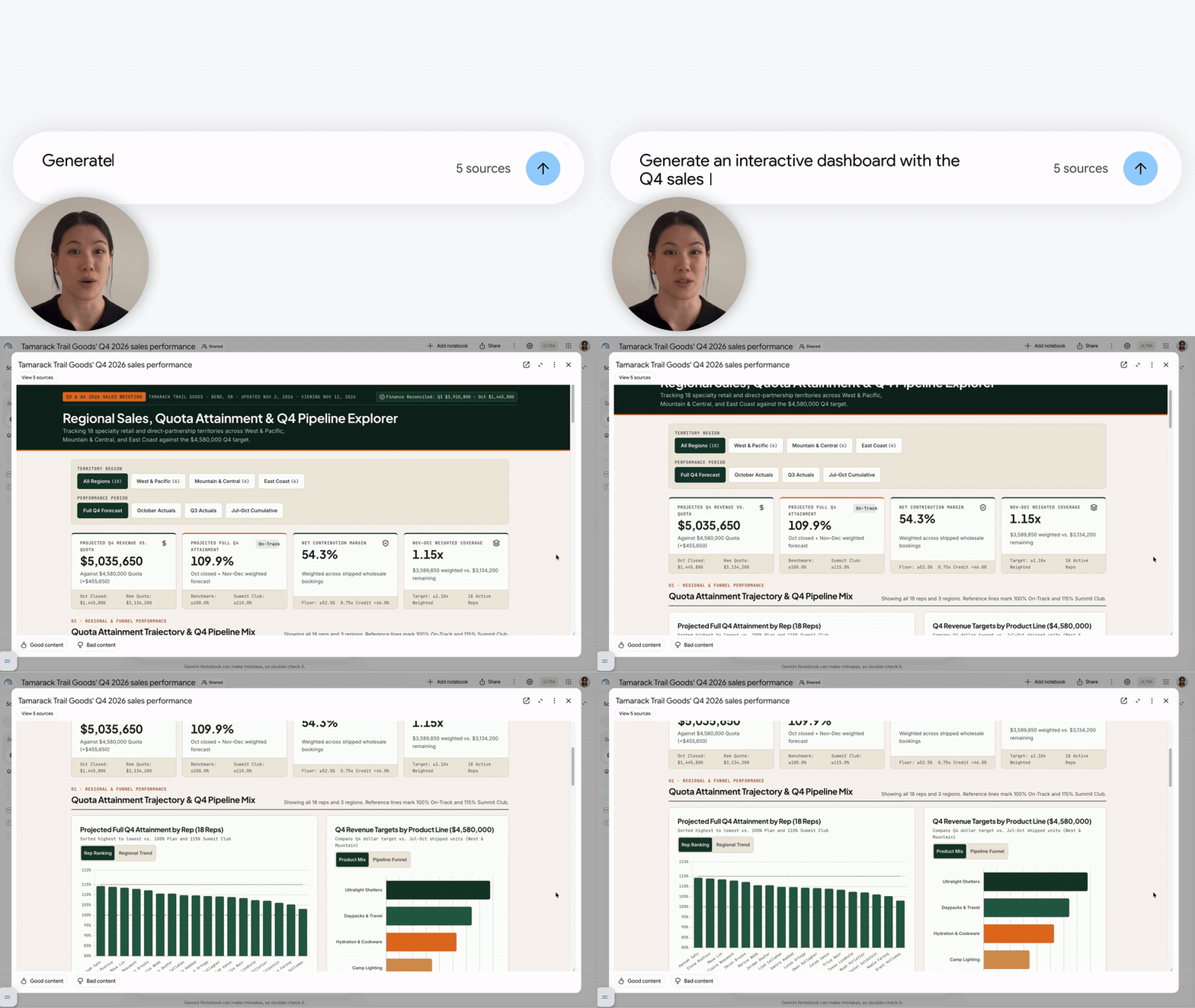
It’s another way to learn and do a deep dive on whatever topic you want. Switching to an audio deep dive can be really nice if you’re traveling or in the car. But if you can sit at a workstation, really diving in with a site built from your notebook’s sources can be really helpful.
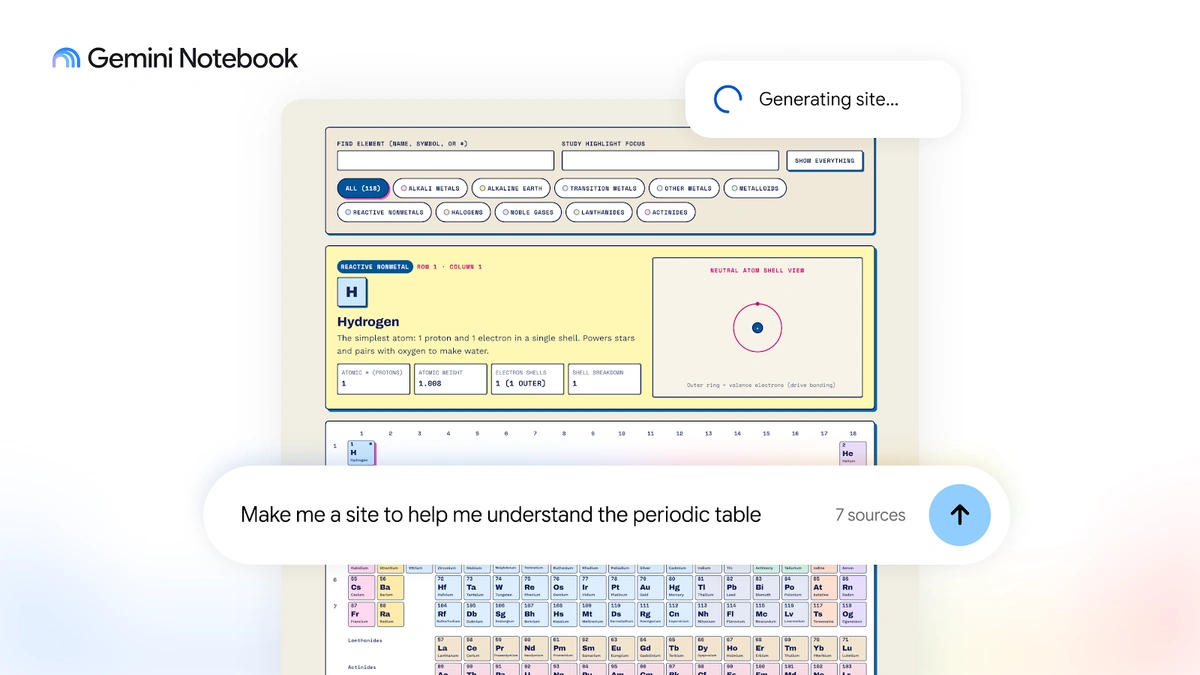
It’s on the web for everyone 18 and older on Workspace or a personal Google account, with mobile coming soon.
My call: use it, absolutely, if you’re already a Gemini Notebook user. Drop in a few reports and ask it for a dashboard.
GIF: cut from Google’s video in Transform notes, research, and sources into interactive sites. Image: Google, Workspace Updates
Who gets the Google ones
Here’s which plans get this week’s three Google updates, from Google’s own posts:
| Business Starter | Business Standard and up | Personal Google account | |
|---|---|---|---|
| Gemini in Apps Script | No | Yes | With Google AI Pro or Ultra |
| Shareable skills | Yes | Yes | Yes |
| Notebook sites | Yes | Yes | Yes, 18 and older |
Shopify Sidekick custom data: use it
Sidekick in Shopify can now analyze your metafields and metaobjects, the custom details you track beyond Shopify’s standard fields, like fabric, supplier, or designer. Ask something like “Show me total sales by fabric for last quarter,” and you get a breakdown next to your sales numbers.
This is great, because your custom data is how you understand, from a technical standpoint, whether an agent can make sense of your store. You don’t need some fancy MCP or API connector to dig into it. You can do it right inside Shopify. It only works with metafields that have “Filter or group data in Analytics” turned on, and some metafield types and reports aren’t supported yet.
My call: use it. Turn on analytics for one metafield you care about, then ask Sidekick about it.
ChatGPT Accounting plugin: wait
OpenAI added an Accounting plugin that helps you reconcile transactions, draft invoice entries, and prepare month-end reports from your records and templates. You need the ChatGPT desktop app with computer use set up, and OpenAI only says to install it if it’s available for your plan and workspace.
Claude recently came out with its finance features too, and I feel the same way about this one. I don’t think you really need it. If you’re already using something like QuickBooks for your books, or Monarch for your own money, that’s probably a better setup anyway.
My call: wait.
Copilot at Ignite: skip
At Microsoft Ignite, Microsoft announced a lot for Copilot. Home, where Chat and Cowork come together, and Office in Copilot, which puts Word, Excel, and PowerPoint inside the Copilot app, are generally available now. Copilot Code, for building apps and dashboards by describing them, is coming in the next few weeks.
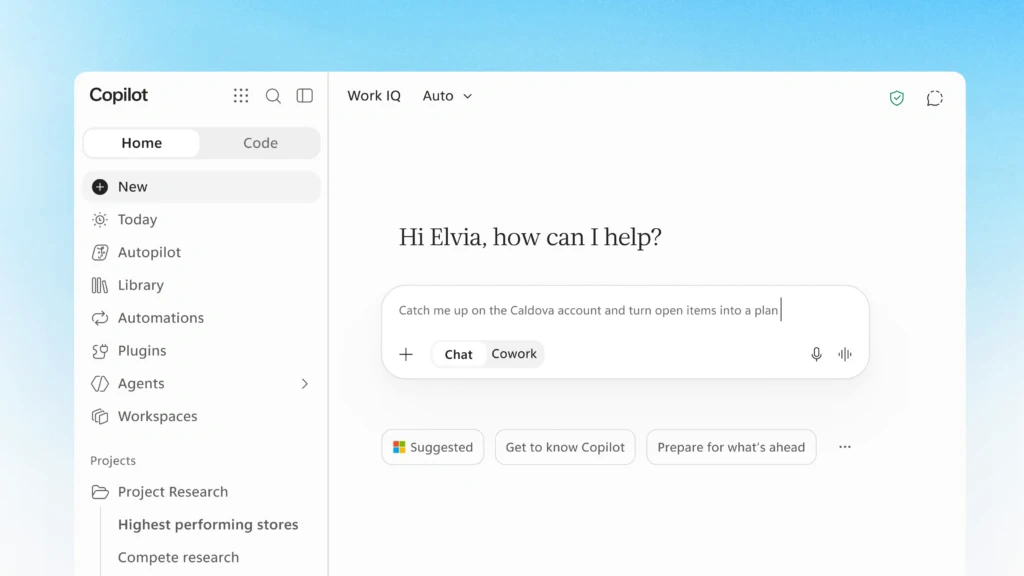
Unfortunately, the headline agent tools, Autopilot and Workspaces, are Frontier only, Microsoft’s early-access program, so most people can’t use them yet. And Microsoft says Office in Copilot is included in your Copilot subscription license, so it’s for businesses already paying for Copilot.
My call: skip for now, unless you’re already in Frontier.
Image: Microsoft, Copilot at Microsoft Ignite
That’s the week. If someone on your team would get something out of this, forward it their way.