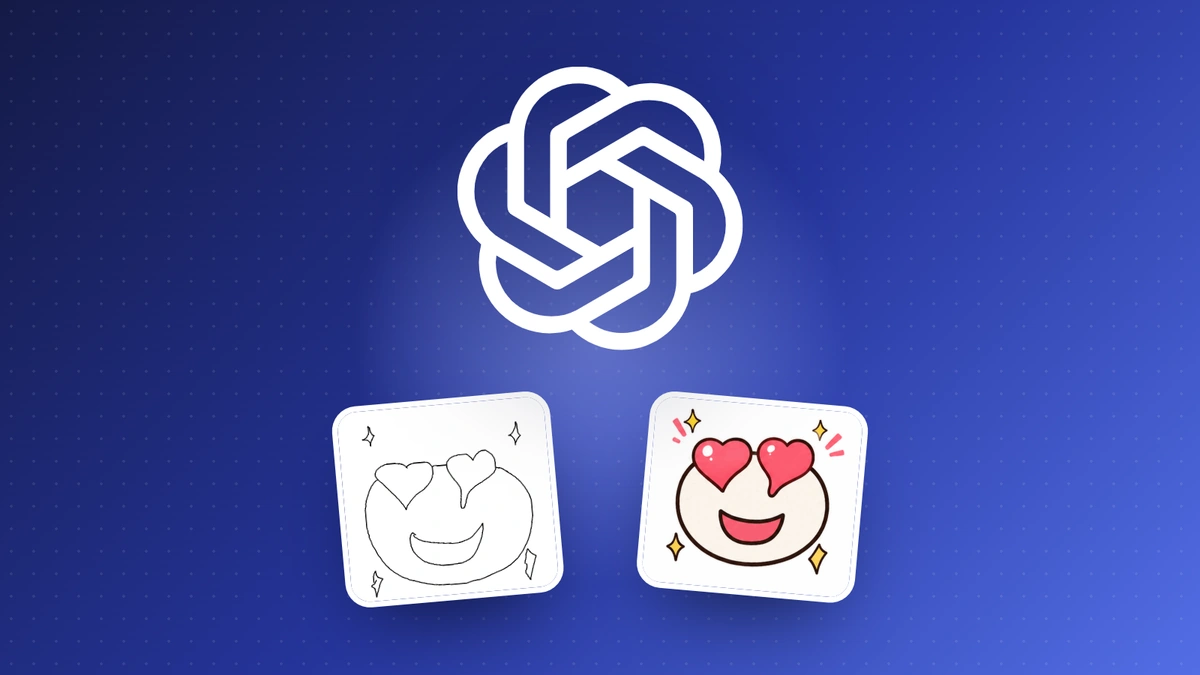
This week’s pick is for anyone who’s ever wanted a little motion in a post without opening a video editor: ChatGPT can now make looping GIFs, even from a rough sketch.
ChatGPT GIFs: use it
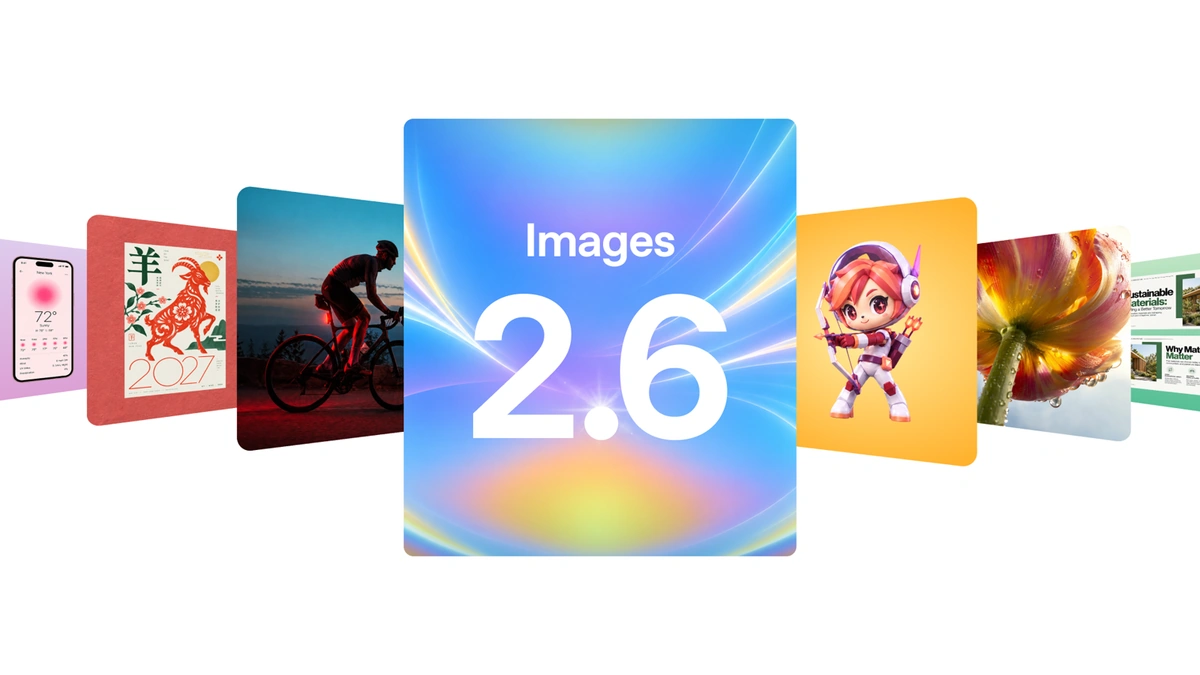
On November 4, OpenAI came out with Images 2.6, and one of the coolest things about it is that you can ask ChatGPT for looping animations. You can upload a sketch you drew and have it make the character wave, adjust the playback speed, and share the GIF. OpenAI says it’s available across all subscription tiers on desktop, mobile, and the web, and that images generate 50% faster than before. The release notes say GIF creation is still rolling out, so you might not see it yet.
The implications of this are really great. You get something down really roughly in some form, and you get a polished animated image out of it. You can put it in emails, post it on social media, or even put it in blog posts like this one.
I tested it myself with something rudimentary: a heart-eyes emoji with some sparkles, drawn in Microsoft Paint. I uploaded it and asked ChatGPT to “please create an animated version of this.”
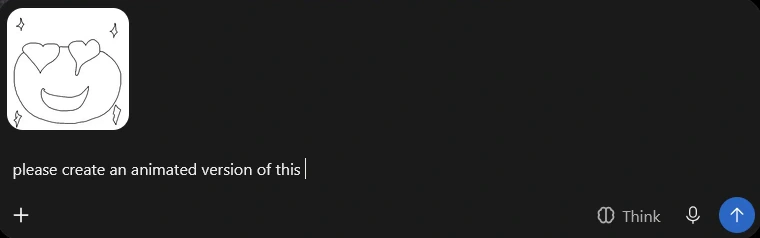
Here’s what it made:

That’s pretty crazy for a drawing that took me a minute.
Ways to use it
OpenAI’s own examples are animating a brand mascot for a campaign, making reactions and memes for social media, and turning a product shot into an eye-catching loop. For a small business, that’s a moving logo or product for a post, or a little flourish in an email, without hiring anyone.
Images 2.6 also brings image markup, which OpenAI says was already in ChatGPT: you mark up a picture to show exactly what to change. In OpenAI’s example, a living room photo gets a pillow circled, the plant and rug crossed out, and the result swaps in a blue pillow with the plant and rug gone.


Images: OpenAI, Introducing Images 2.6
The catch
This one comes from Jon Robinson, our creative director: AI often gets lines and small details wrong, and it adds shadows that make no sense. His advice is to keep it simple, because the less complex the idea, the fewer mistakes it makes. So double-check any AI output to make sure it’s in line with your brand, and have someone with a good design sense look it over before it goes out.
My call: use it. Ten-minute test: draw something rough in Paint, like your logo or a simple character, upload it, and ask for an animated version. Then decide if you’d actually post it.
The rest of this week
Forms insights: use it
On November 5, Google added actionable insights to Google Forms. From the Responses tab, Gemini analyzes your responses by writing and running Python code, so the counts, percentages, and comparisons come from your actual data. It spots patterns across questions, summarizes the most important takeaways, and suggests next steps.
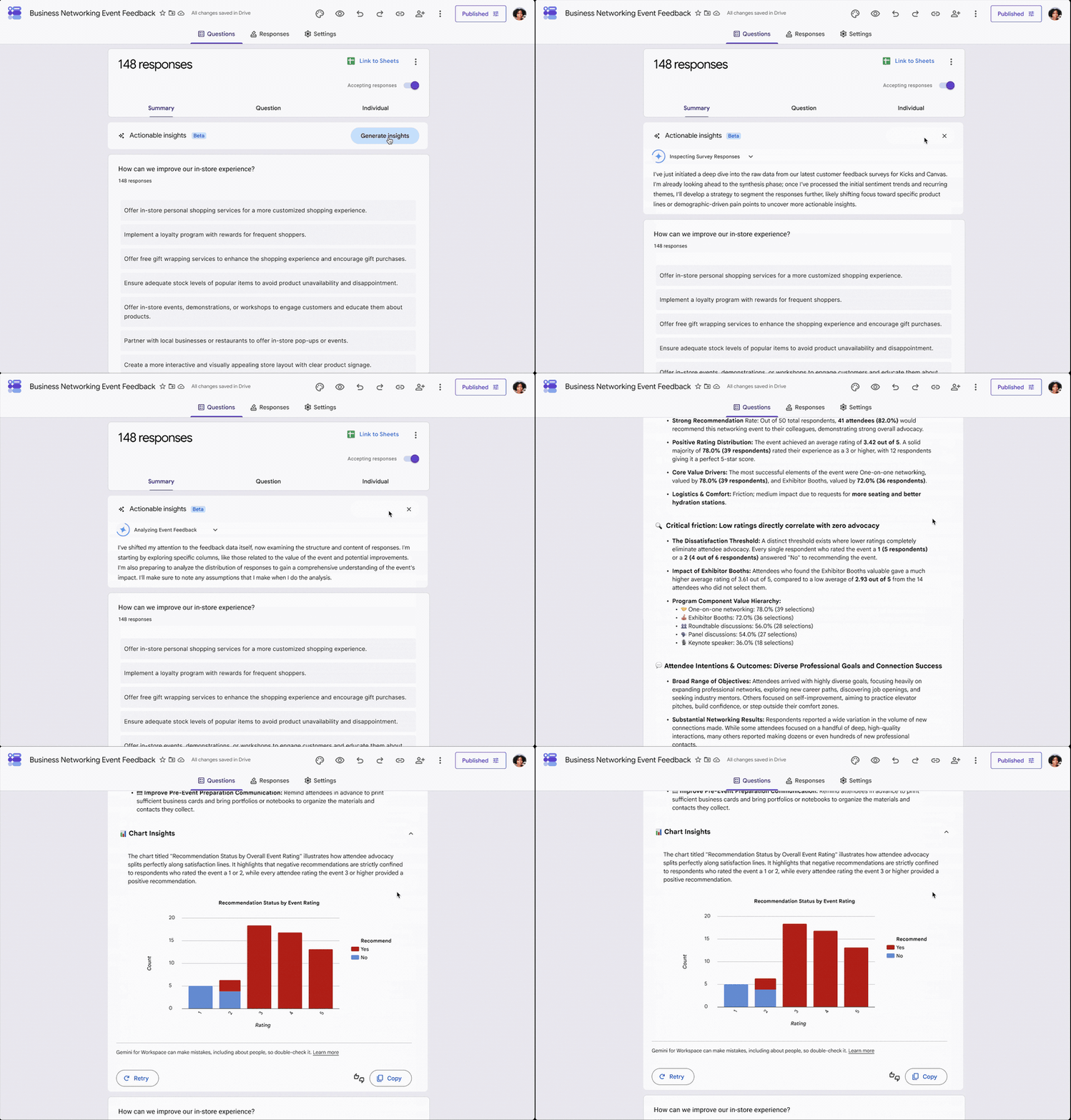
It’s a really nice way to pull insights from a bunch of responses without parsing through each one yourself. Very handy if you’re a heavy Google Forms user. It’s on Business Standard and Plus, Enterprise Standard and Plus, Education Plus, and Google AI Pro and Ultra. It started rolling out November 2 for Rapid Release domains and starts November 19 for Scheduled Release, and either can take up to 15 days to show up.
My call: use it. Open the feedback or application form with the most responses and generate insights.
GIF: Google, Get actionable insights with Gemini in Google Forms
Shopify app check: use it
If you’re running an e-commerce store on Shopify, you can now review more app access and security information under Settings > Apps. The apps list shows each app’s latest activity and flags security issues. Each app’s page puts its access, permissions, and activity in one place, labels permissions that may include sensitive data, and shows whether the app uses expiring access tokens and IP restrictions.
My call: use it. Absolutely go through this if you have a Shopify store, and remove anything you don’t use anymore.
PowerPoint style match: use it
When you create a presentation with Copilot in PowerPoint, you can now attach an existing deck, and Copilot applies its theme and styles to the new one, on Windows, Mac, and the web. Before, new presentations used default themes.
This is really handy. Instead of copying and pasting template elements, you can make a new deck from scratch with the design of one you already have. It keeps you from reusing the same components you’ve used 500 times and gives you a fresh take, but with the same look and feel. That keeps things on brand while giving you more visual variety.
My call: use it. Attach your best-looking deck and ask Copilot for a new one on a different topic.
Claude Personal Finance: wait
Anthropic launched Personal Finance in Claude. You connect your bank and card accounts through Plaid and ask about your money in plain language. Claude sees your balances and up to two years of transactions, and the access is read-only, so it can’t move, manage, or invest your money. It’s in beta on the Pro, Max, and Ultra plans in the US.
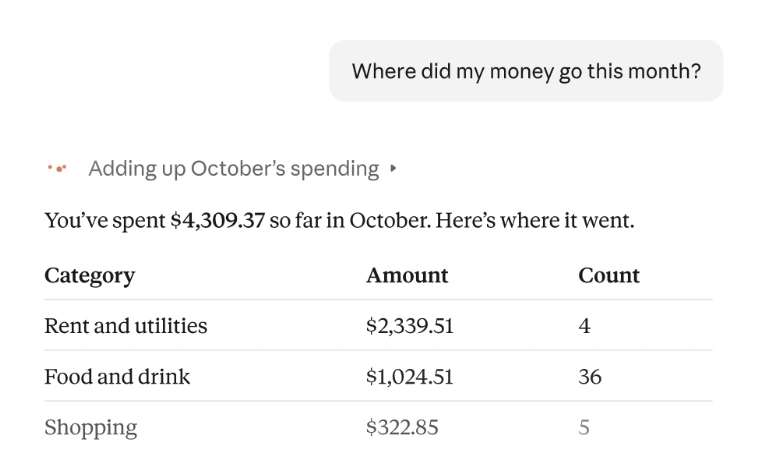
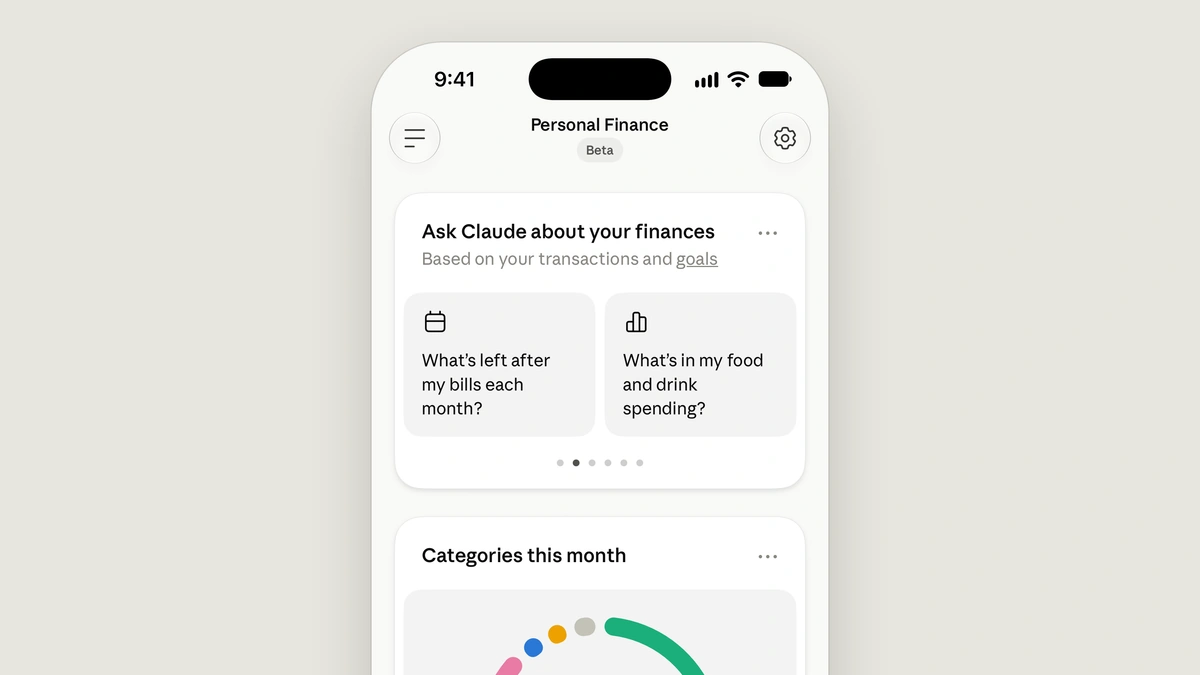
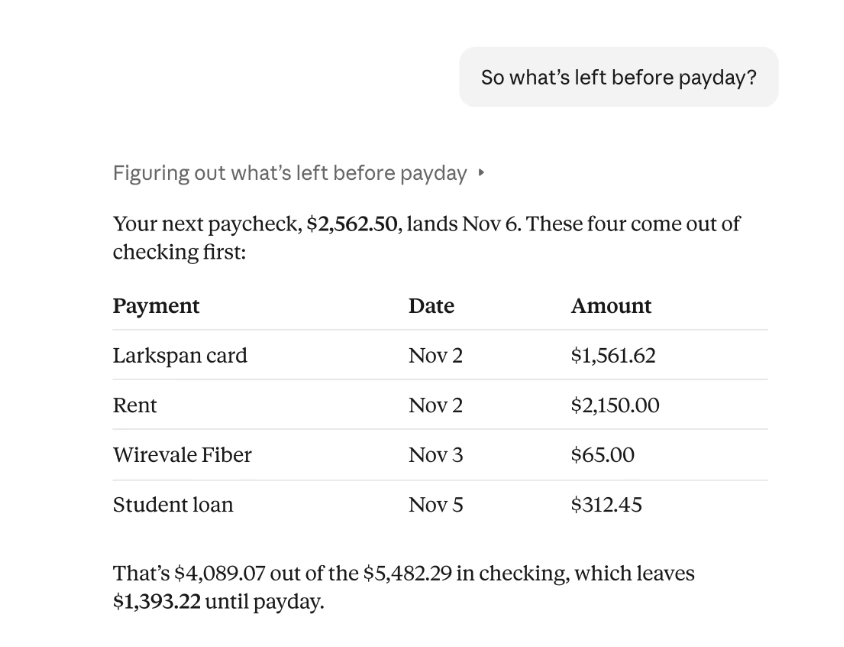
Read-only is nice. But what I’d actually recommend (and I’m not sponsored by them) is using a budgeting app like Monarch with its MCP connection to Claude, rather than Claude’s own finance feature. That keeps your finances in a dedicated platform you can read and update yourself, and you can still use Claude to analyze them. I’d wait on this one, and maybe even skip it entirely.
My call: wait.
Images: Anthropic, Introducing Personal Finance in Claude
Vids 15-second clips: skip
Google Vids now uses Gemini Omni 1.2 Flash, so generated clips can run from 3 up to 15 seconds, with better consistency when you use reference images. Google’s own screenshot shows the clips at 720p. It’s nice to play around with, but it’s nothing for serious commercial work by any stretch.
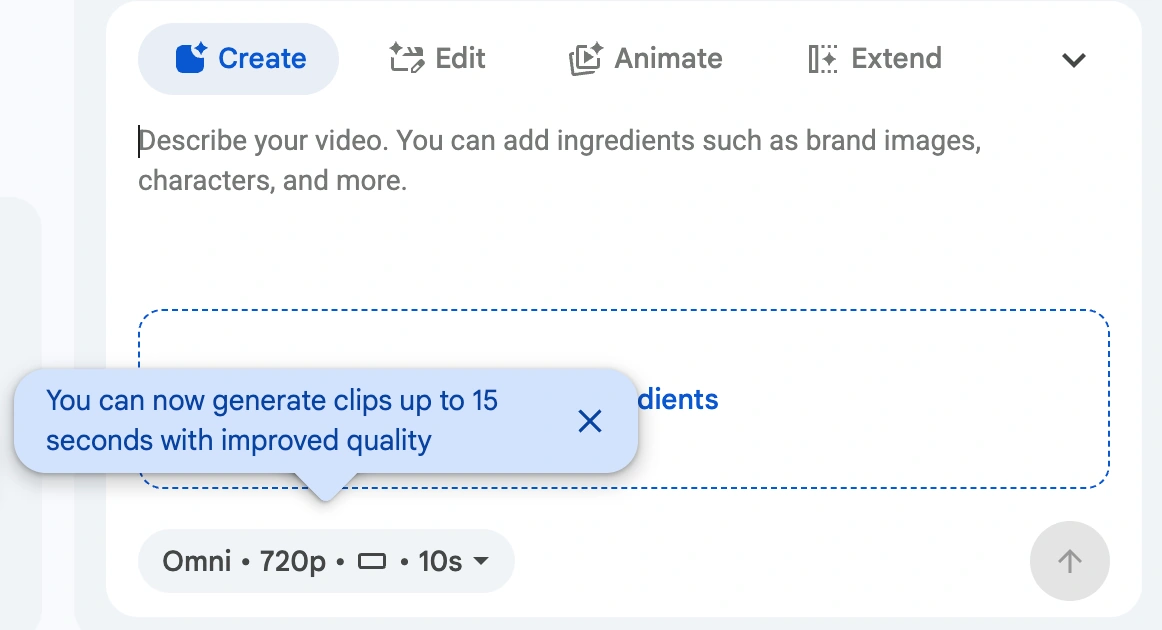
My call: skip for anything you’d put in front of customers.
Image: Google, Gemini Omni 1.2 Flash now in Vids
That’s the week. If someone on your team would get something out of this, forward it their way.