
This week’s pick is one every business owner should do this week: claim your business in ChatGPT, so it has accurate information about you.
Claim your business in ChatGPT: use it
On November 10, OpenAI launched Businesses in ChatGPT in beta. Through Business Hub, you claim your business, update its details, add product feeds with pricing and availability, and see insights on how people engage with you. It’s essentially Google Business Profile for AI answers.
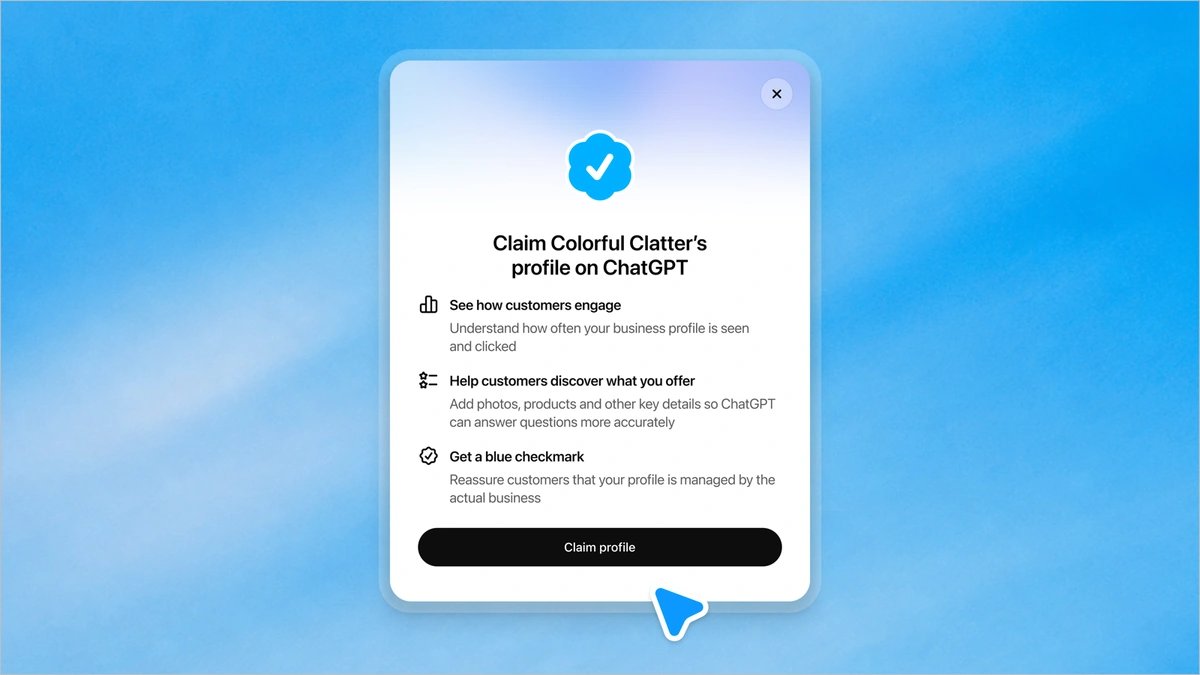
I did this recently for lilAgents. When you claim your profile, it matches you to an existing business it already knows about, or you can create a new one. Then you verify it. You can use your business phone, your business email, your website domain, or your Shopify store. We used the domain: ChatGPT gives you a TXT record to add to your DNS settings, and once it shows up, you click Verify domain. Pretty easy.
After OpenAI approves the claim, there’s one more step: an ID check with Persona. You need that before you can publish changes or see insights, and the blue check only shows up once it’s approved. There’s no ad account required, and no Enterprise deal either.
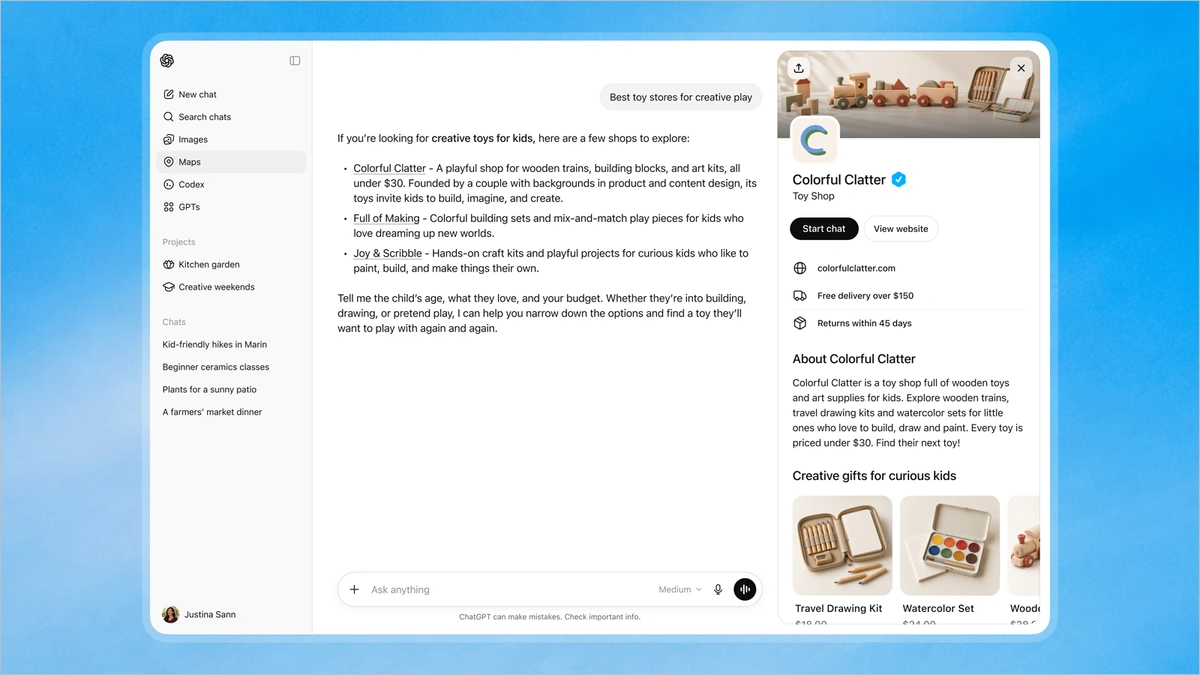
What you get
The insights show the number of mentions and website clicks your business gets, plus discovery topics, the common themes across conversations where your website is cited. OpenAI says they cover the past 28 days, and they only show up once there’s enough activity, so a smaller business may see blanks at first.
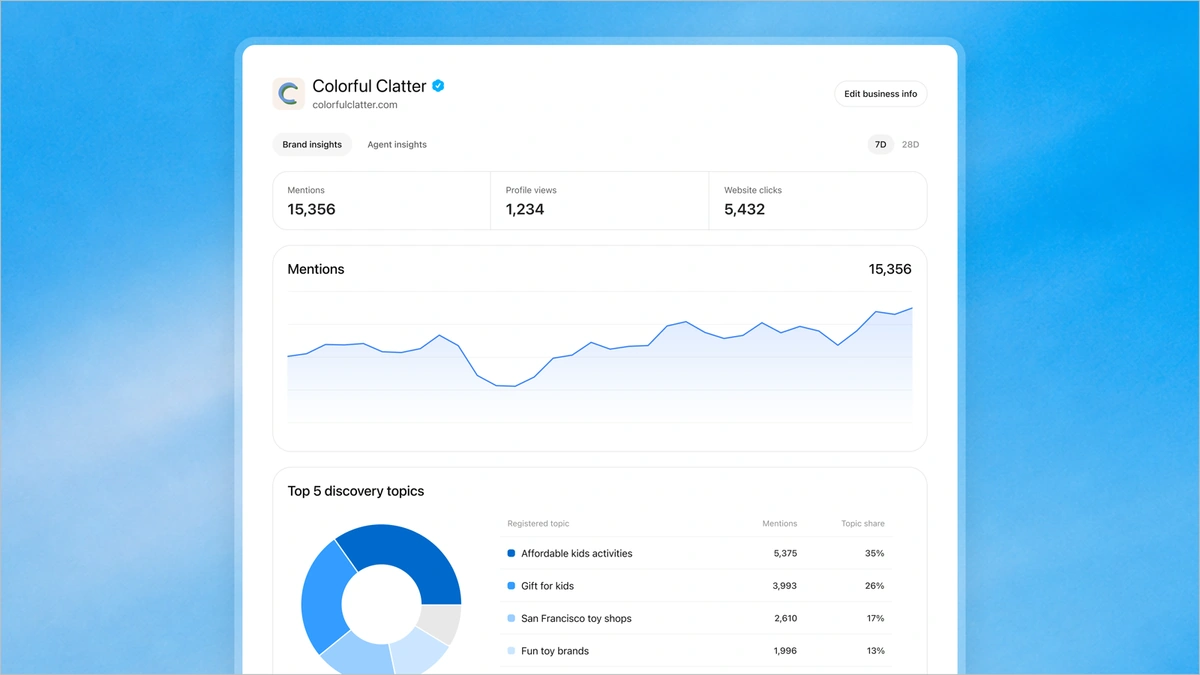
There are ways to correct what ChatGPT is saying now, which owners have wanted for a long time. That’s pretty great.
Business Agents
OpenAI also announced Business Agents, a chat on your profile that answers customer questions using information you give it, including the products you add to your profile. You build it, test it, and publish it yourself. It’s not available for everyone yet: for now, it’s eligible ecommerce and online service businesses in the US. Pretty cool, and definitely worth checking out if you qualify.
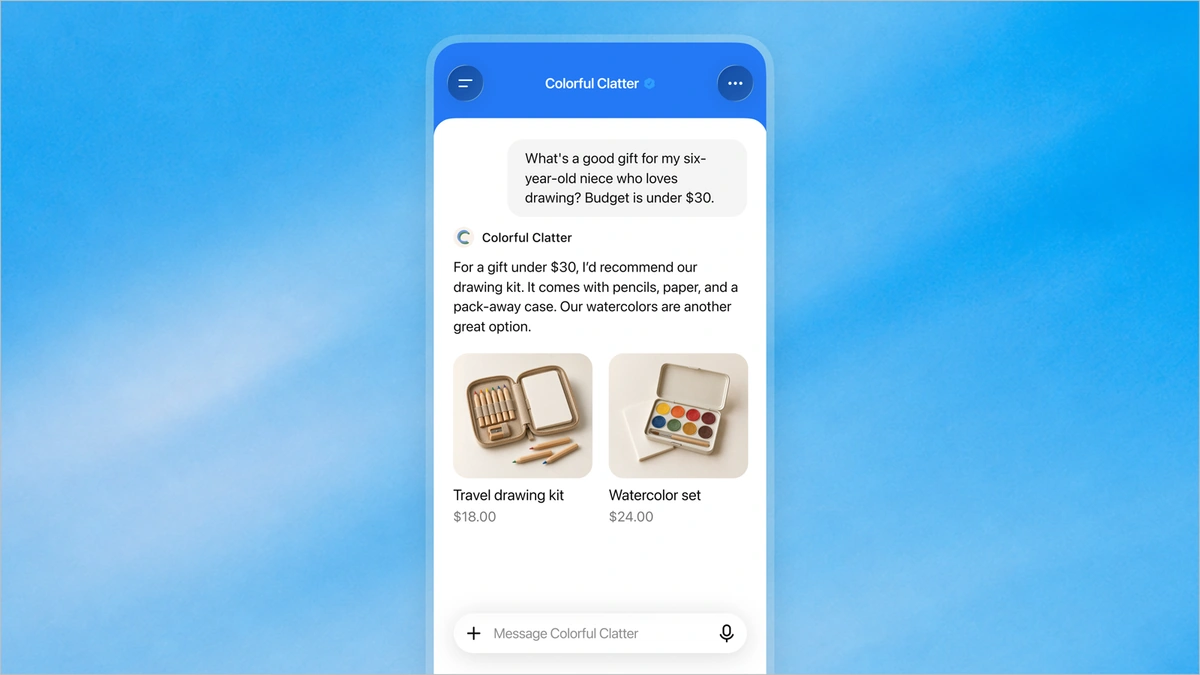
The catch
OpenAI is clear that claiming doesn’t change your visibility. In its words, it “doesn’t guarantee increased visibility or give you direct control over ChatGPT’s independent recommendations.” OpenAI reviews and publishes your changes, updates can take time to show up, and ChatGPT may still use other sources when it answers questions about you. So this is about accurate information and numbers, not ranking.
My call: use it. If you have a business, claim it in ChatGPT so any OpenAI product has accurate information about you. Ten-minute test: open Business Hub, search your business name, read what it says, and start the claim while you’re there.
Images: OpenAI, Introducing Businesses in ChatGPT
The rest of this week
Workspace skills: use it
This one is awesome. On November 9, Google started rolling out skills in Google Workspace, “reusable, custom instructions that guide Gemini to apply your team’s rules, templates, and reference files.” In Google Workspace Studio, you can edit the native SKILL.md file directly. You can also prompt Gemini in Gmail, Docs, Slides, Drive, and Chat to create and fix skills without leaving the app.
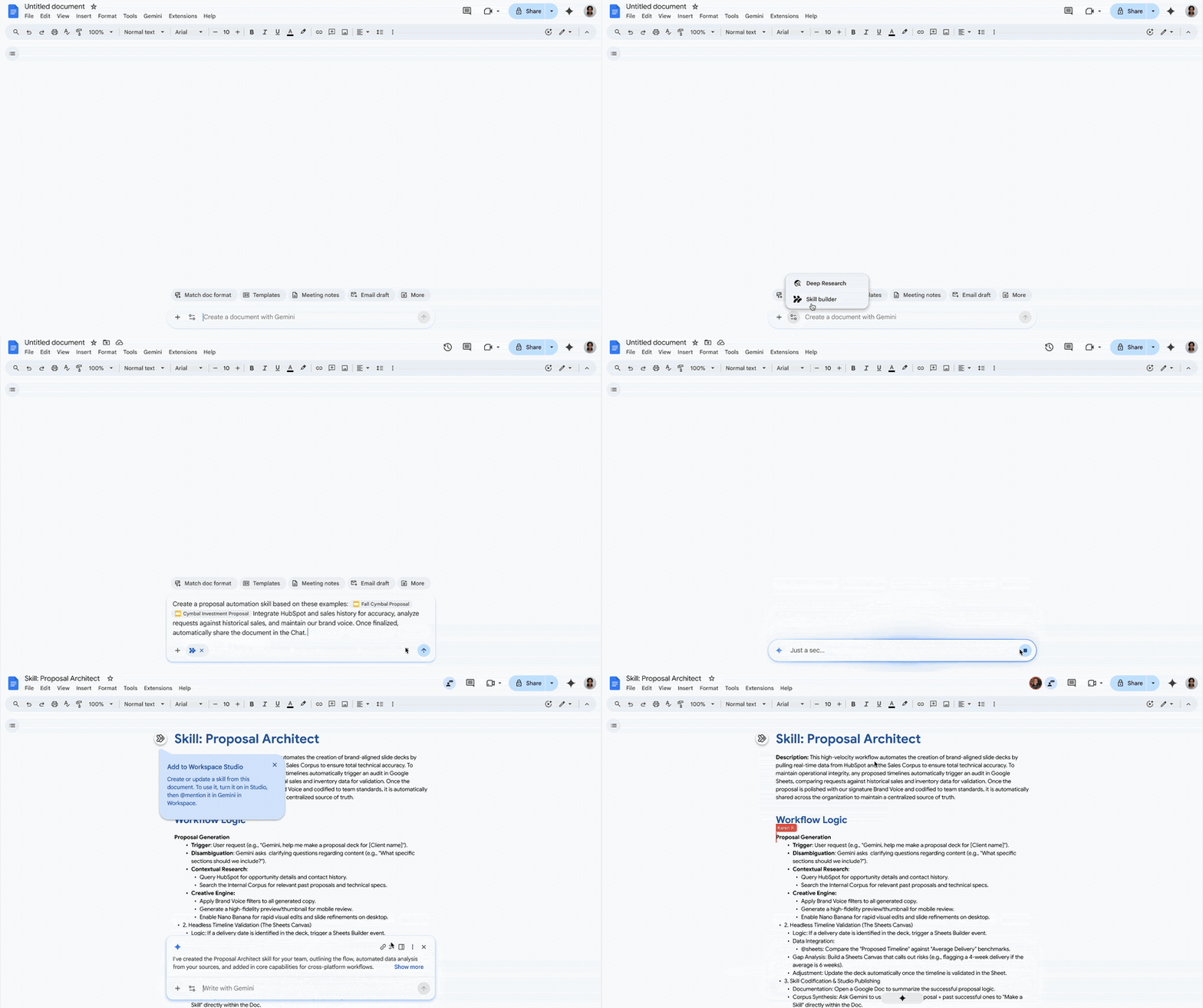
Then you use them with the @ symbol to tag a skill, or Gemini applies one on its own when it sees it’s relevant. You can even combine several in one request.
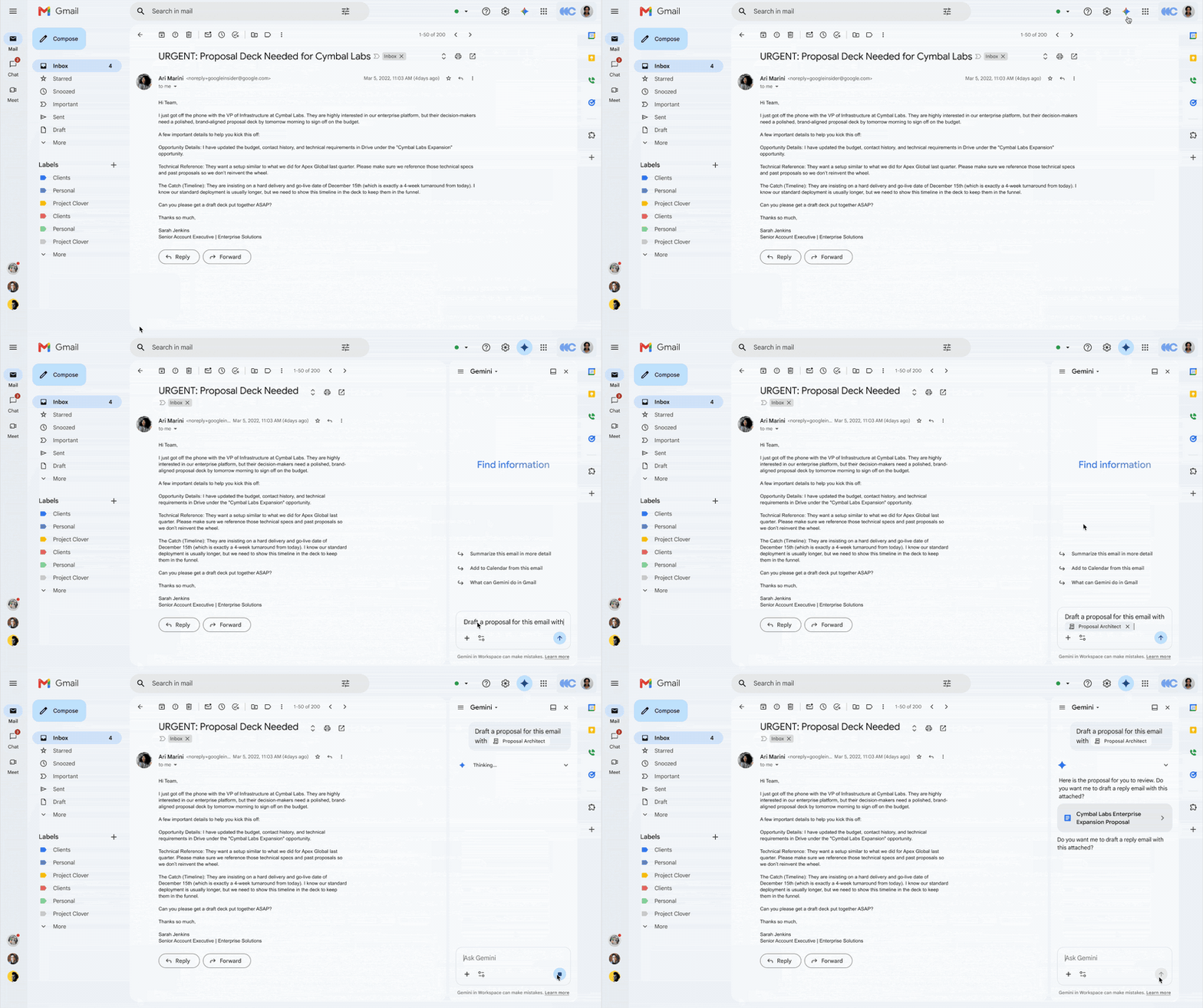
You can imagine the implications. A marketing or sales team can keep an approved brand voice, tone, and structure across emails, proposals, and decks. A finance or legal specialist can standardize recurring contract reviews. The big benefit is that these aren’t siloed chats living on their own island. You can use the same skills across multiple apps, which is really nice.
They’re on by default, and end users have them unless an admin turns them off. They’re in Business Starter, Standard, and Plus and Enterprise Starter, Standard, and Plus, but not personal Google accounts. They aren’t in Sheets or Meet yet, and they’re English only for now.
My call: use it. Absolutely. This is a big step up. Write your proposal rules or brand voice as one skill, then @ it the next time you draft in Gmail.
GIFs: cut from Google’s demo in Skills in Google Workspace
Wait until in Workspace Studio: use it
Also new in Workspace Studio: a Wait until step. Instead of splitting a sequence into separate scheduled flows, you can pause a flow and pick it back up at a set time, like Monday at 8 AM to post a team digest, or three days later to send a follow-up email. A pause can last up to 14 days. There’s no admin control for it, so anyone with Workspace Studio can use it right away.
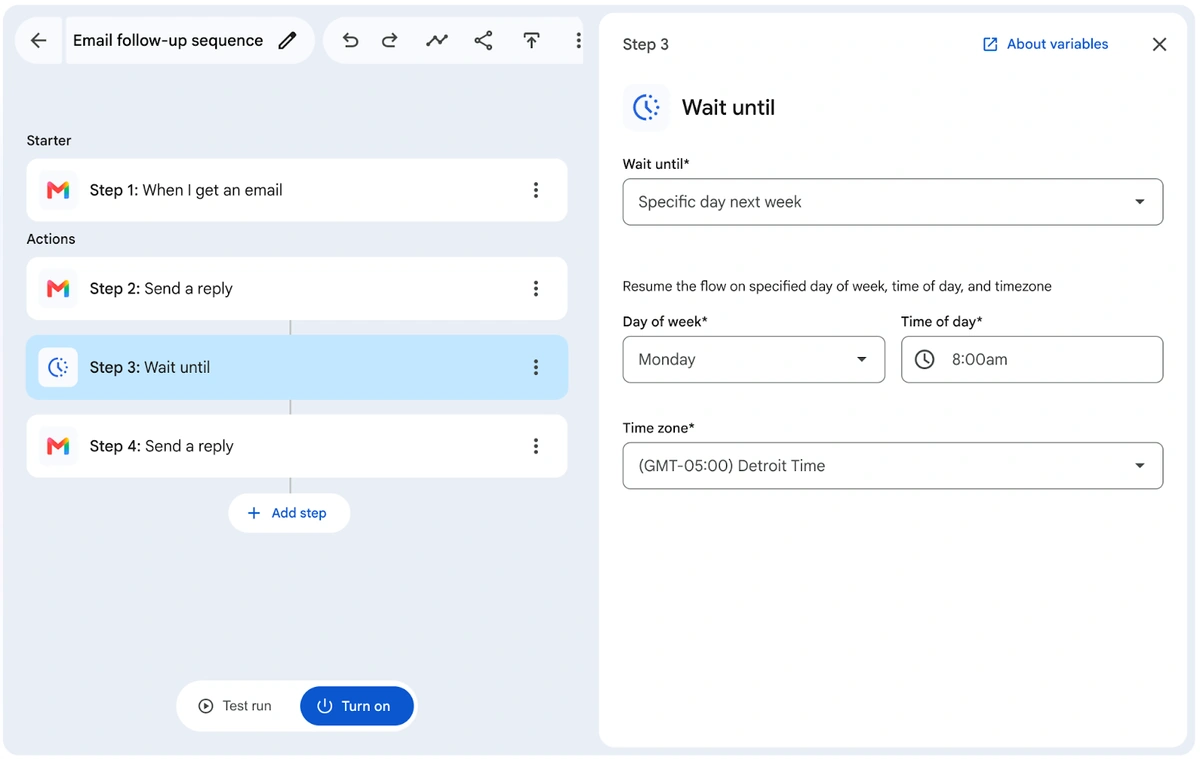
My call: use it. Build a two-step follow-up: reply to a new lead now, then wait three days and send a check-in.
Image: Google, the Wait until step in Workspace Studio
When the Google updates reach you
Google rolls these out over a window, so here’s when to expect each one, from Google’s own posts:
Each bar runs from the rollout start to the latest date Google says a feature can take to show up.
Shopify store activity log: use it
On the Shopify side, there’s a rebuilt store activity log under Settings > General. It shows changes to products, orders, discounts, themes, apps, staff, payments, and settings in one place, and each change is credited to the staff member, collaborator, or app that made it. You can filter by who made a change, open one to see the old and new values, and it keeps up to 18 months of changes instead of the last 250 events.
This is very nice, since it’s getting harder to tell whether an AI agent or a person changed something. AI tools that connect to your store do it as apps, so the log shows the app’s name. Very important for that.
One thing to know: history only starts from when Shopify began recording each type of change, shortly before this release, and not every admin action is recorded yet.
My call: use it. Open the log, filter by apps, and see what’s been changing your store.
Gemini in Gmail for everyone: skip
Google expanded Gemini in Gmail to everyone, and by everyone, they mean every Google Workspace customer, Workspace Individual subscribers, and personal Google accounts 18 and older. Right now, it’s mostly AI Overview summaries at the top of long threads and “Help me write” drafts that aren’t personalized. It’s on by default, and you can turn it off yourself, or an admin can.
It’s good enough. I’d play with it, but I wouldn’t seriously use it a ton. Personally, I’d rely on something more strategic, like an AI harness, instead of these one-off convenience chats. But it’s fine if you’re getting your feet wet.
My call: skip it as a real workflow. Turn it off if it gets in your way.
Claude Meetings: wait
Finally, Claude can join your calls. Anthropic launched Claude Meetings in beta: Claude joins Google Meet as a visible participant, writes the notes and action items, and can build docs and whiteboards while you talk. You can also ask it questions during the meeting, out loud or in chat, which is a pretty nice feature.
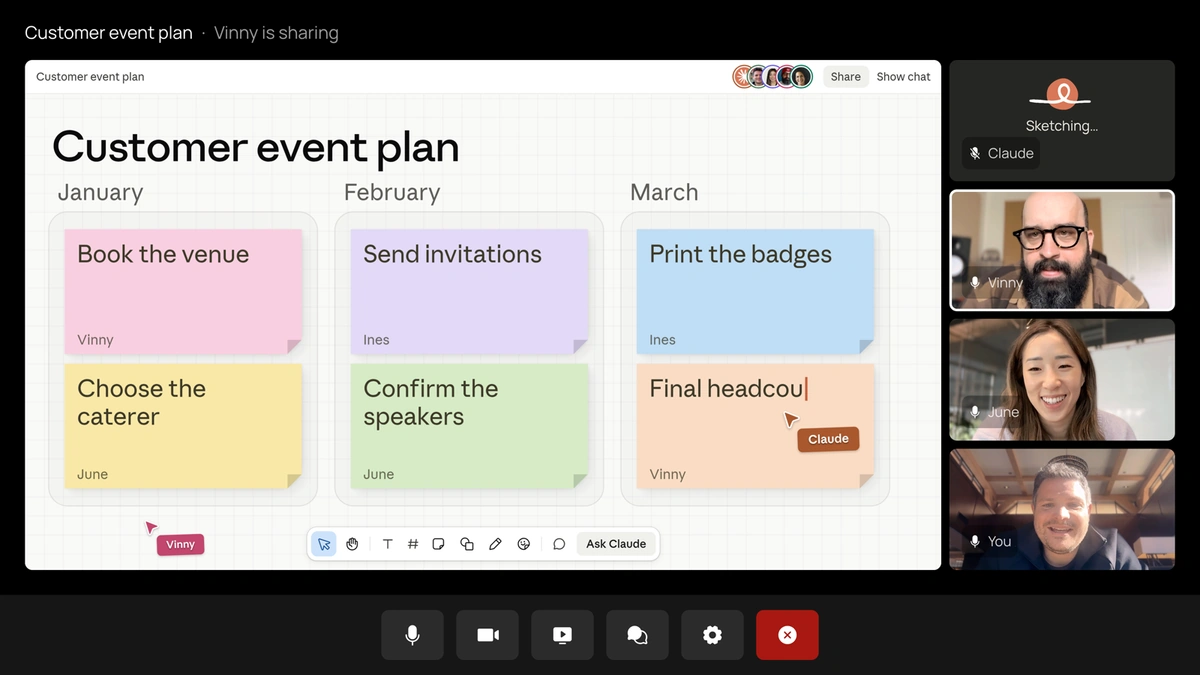
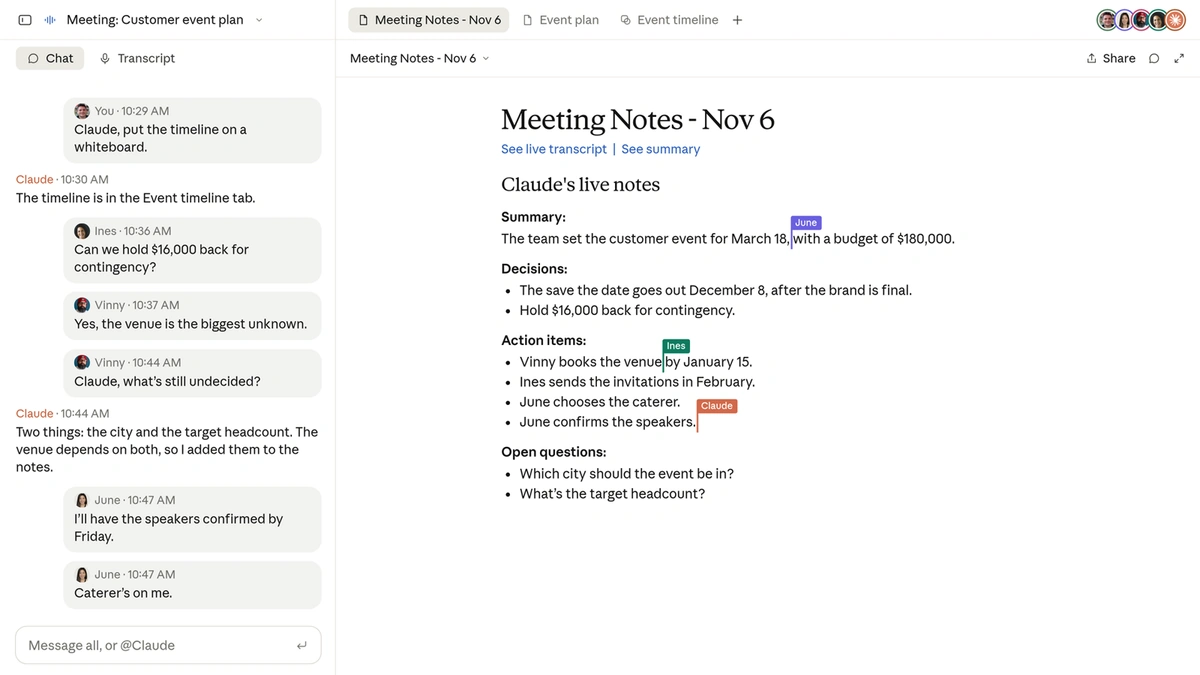
Unfortunately, it’s not for most Claude users. It’s a beta on Team and Enterprise plans only, and it only works with Google Meet for now. There are other ways to accomplish the same thing that don’t rely on Claude. Anthropic says it’s working with partners like Gong, Fireflies.ai, and Otter so you’ll soon be able to send a meeting’s transcript to the tools you already use.
Whether or not you use this, I’d definitely store your transcripts in your own storage, and not rely purely on Claude to keep them.
My call: wait. Maybe experiment if you have it, but use a third-party notetaker for now if you can.
Images: Anthropic, Introducing Claude Meetings
ChatGPT Wallet: skip
Lastly, OpenAI introduced ChatGPT Wallet. You save a card once, and your dot (ChatGPT’s agent) can buy things for you after you approve the merchant, items, total, and card with Face ID or Touch ID. It’s for ChatGPT Pro subscribers in the US only, for personal shopping.
It’s basically like the Vault in Grok Bot that came out recently. Grok Bot’s Vault saves your cards, and per its own docs, a saved card “fills in at checkout without asking you each time.” If you want to approve every payment there, xAI’s advice is to not save the card at all.
When it comes to ChatGPT Wallet or Grok Bot’s Vault, I’d definitely be wary. If you really want to try one, use a virtual card from somewhere like Privacy.com, Capital One, X Money, or Mercury, and give it a spending limit wherever you can. Don’t just trust that the agent will follow a budget. Tell it the budget, but on your side, use the controls you have: give the card a maximum spend and treat it that way.
My call: skip for now. And if you try it anyway, cap the card first.
That’s the week. If someone on your team would get something out of this, forward it their way.