
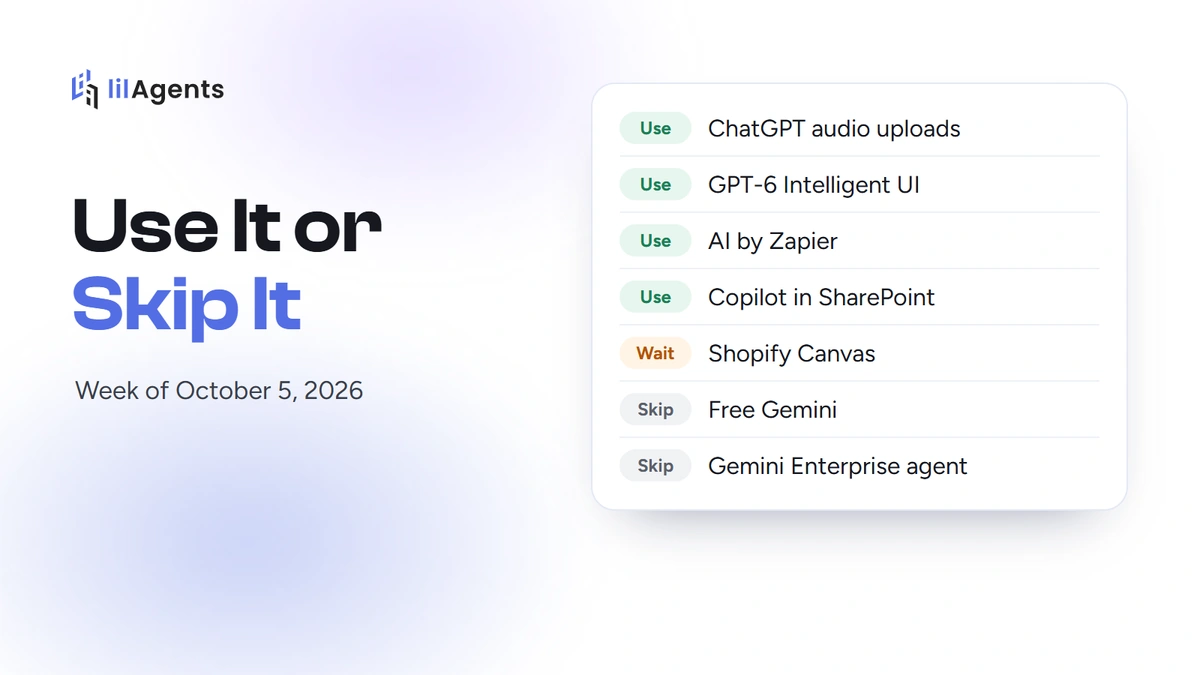
This is the first real issue of Use It or Skip It. The idea is simple: something new in AI comes out every week, and you shouldn’t have to track all of it yourself. So each week we pick the one update most worth your time, try it, and give you a quick call on the rest: use it, wait, or skip it.
This week’s pick is one I’m genuinely excited about, because it fixes a small annoyance I run into constantly.
ChatGPT takes your audio files now: use it
As of October 6, you can attach an audio file to a ChatGPT conversation and get a transcript back. Then you can keep going: ask for a summary, pull out the decisions and next steps, or have it draft the follow-up email. It works on any paid ChatGPT plan (Free can upload documents, but not audio, at least for now).
Why it matters: you probably have recordings sitting around already. A voice memo from a job site, a sales call, an interview, a meeting you recorded on your phone. Before, turning that into something usable meant a separate transcription tool or a note-taker subscription. Now you just drop the file into ChatGPT and ask for what you need. You don’t have to think twice about it.
It also takes more than audio. Here’s what you can attach:
- Documents and text: DOCX, PDF, TXT
- Spreadsheets: XLSX, XLS, CSV, TSV
- Presentations: PPTX
- Audio: WAV, MP3, M4A, AAC, FLAC, OGG, PCM, and audio-only WebM or MP4
The catch: video files don’t count
If your recording is a video (most Zoom, Teams and phone screen recordings are), ChatGPT won’t take it, even though it has audio in it. MP4 and WebM files only work if they’re audio-only. So pull the audio out first. Pick whichever of these fits you:
- On a Mac: open the video in QuickTime Player, then File > Export As > Audio Only. You get an M4A file ChatGPT can read.
- On any computer, no command line: install VLC (free). Go to Media > Convert / Save (on a Mac, File > Convert / Stream), add your video, pick the “Audio - MP3” profile, choose where to save it, and hit Start.
- If you’re comfortable in a terminal: with FFmpeg installed, this one line does it:
ffmpeg -i recording.mp4 -vn -c:a libmp3lame -q:a 4 recording.mp3How much fits
Audio files can be up to 512 MB, which is a lot more than it sounds. A normal MP3 (128 kbps) works out to roughly nine hours of audio in 512 MB, and a voice memo saved at a lower quality fits even more. The exception is WAV: uncompressed, CD-quality WAV fills 512 MB in a little under an hour. So if your recorder saves WAV files, convert them to MP3 first with any of the methods above and you’ll have plenty of room. (ChatGPT may also process very long recordings in sections, and OpenAI says really long ones can time out.)
The other limits, straight from OpenAI’s help page:
- Up to 80 files every 3 hours (Free plans get 3 uploads a day).
- Text and document files are capped at 2 million tokens each, which is a very long document.
- Your uploads share a storage cap of 25 GB per person and 100 GB per organization. You can see how much you’ve used under Settings > Storage.
Before you use it
Two things. OpenAI is upfront that transcripts can contain errors and that it isn’t always reliable about who said what, so check anything important against the recording. And keep the original recording in your own storage. ChatGPT is great at turning it into something useful, but it shouldn’t be the only place your recordings live.
My call: use it. Try it this week with a short voice memo and ask it to “write the follow-up email from this.” That’s the moment it clicks.
The rest of this week
GPT-6 and Intelligent UI in ChatGPT: use it
OpenAI shipped GPT-6 on October 7, and the bigger news for most people is what it calls Intelligent UI. Instead of a wall of text, ChatGPT can now answer with side-by-side comparisons, diagrams, and small tools you use right in the conversation, like calculators. It picks the format on its own, and it can start answering while it’s still working on the rest. It rolled out to paid plans first, and to Free and Go starting October 8.
How you can apply it in your business: ask the questions you’d normally build a spreadsheet for. “Compare these three quotes side by side.” “Build me a calculator for job pricing based on square footage and materials.” You get something you can click around in and adjust, instead of numbers you have to copy into Excel.
AI by Zapier: use it, if you already use Zapier
Zapier Agents is now AI by Zapier, and it’s a better idea than it sounds. Instead of a separate agent product, AI is now a step inside a normal Zap. So you can mix steps that think with steps that just do the same thing every time: let the AI decide which record to update, then send the confirmation email with a regular Zapier action.
That’s the relevant part for you. If you already have Zaps running, you can add AI to them instead of starting over. AI steps bill as regular tasks, you can see the cost of each run in your Zap History, and you can set a limit on tasks per run so nothing loops quietly. If you used Zapier Agents, there’s a migration guide, and your agents don’t have to be rebuilt from scratch.
Copilot in SharePoint: use it, if you pay for Microsoft 365 Copilot
Two new tricks worth flagging if your team lives in SharePoint. Copilot can now split, merge and reorder PDFs, and pull a section out into its own file (“pull the pricing section out of this packet into its own PDF”). And if someone made a bad edit to a document, you can ask Copilot to show what changed and restore the earlier version. Both are included with a Microsoft 365 Copilot license. Details are in Microsoft’s October update.
Shopify Canvas: wait
Canvas lets you redesign your whole store by chatting with Shopify’s AI, with every page laid out in one workspace. It’s impressive. The catch is that a theme edited in Canvas stops getting theme updates, because it’s now your own custom version. It also doesn’t work with themes bought from the Shopify Theme Store yet.
If you want to play with it, duplicate your theme first and try Canvas on the copy. Your live store keeps getting updates, and you can always switch back.
Free Gemini: skip it for real work
As of October 9, free Gemini accounts are limited to Flash-Lite, Google’s lightest model. Flash now takes a Google AI Plus plan, and Pro takes AI Pro (Google’s details). If you’ve been leaning on free Gemini for actual work, this is the week to decide whether it’s worth paying for, or whether another tool you already pay for does the job.
Gemini Enterprise agent: skip it for now
Google announced Gemini as “a single, universal agent for work” at Gemini at Work. You give it an outcome and it does the work across the web, desktop, the command line, Google Workspace, Microsoft 365 and Slack. Google also named Argon, its new frontier reasoning model.
It’s a nice promo, but for a smaller business it’s hard to act on. It’s part of Gemini Enterprise on Google Cloud, and the announcement doesn’t say how a business moves over to it or what it costs. If you’re on Google Workspace, keep an eye on it. Otherwise, there’s nothing to do yet.
One thing we keep hearing
Owners are building their own tools. On an upcoming episode of Retooled, our podcast, a contractor walks through the CRM he built for himself with AI in six days, after his old one couldn’t give him what he needed. We keep hearing versions of that story, and we’ll come back to it.
That’s the week. If someone on your team would get something out of this, forward it their way.